
How to Auto-Connect Subitems Back to Parent Items in monday.com
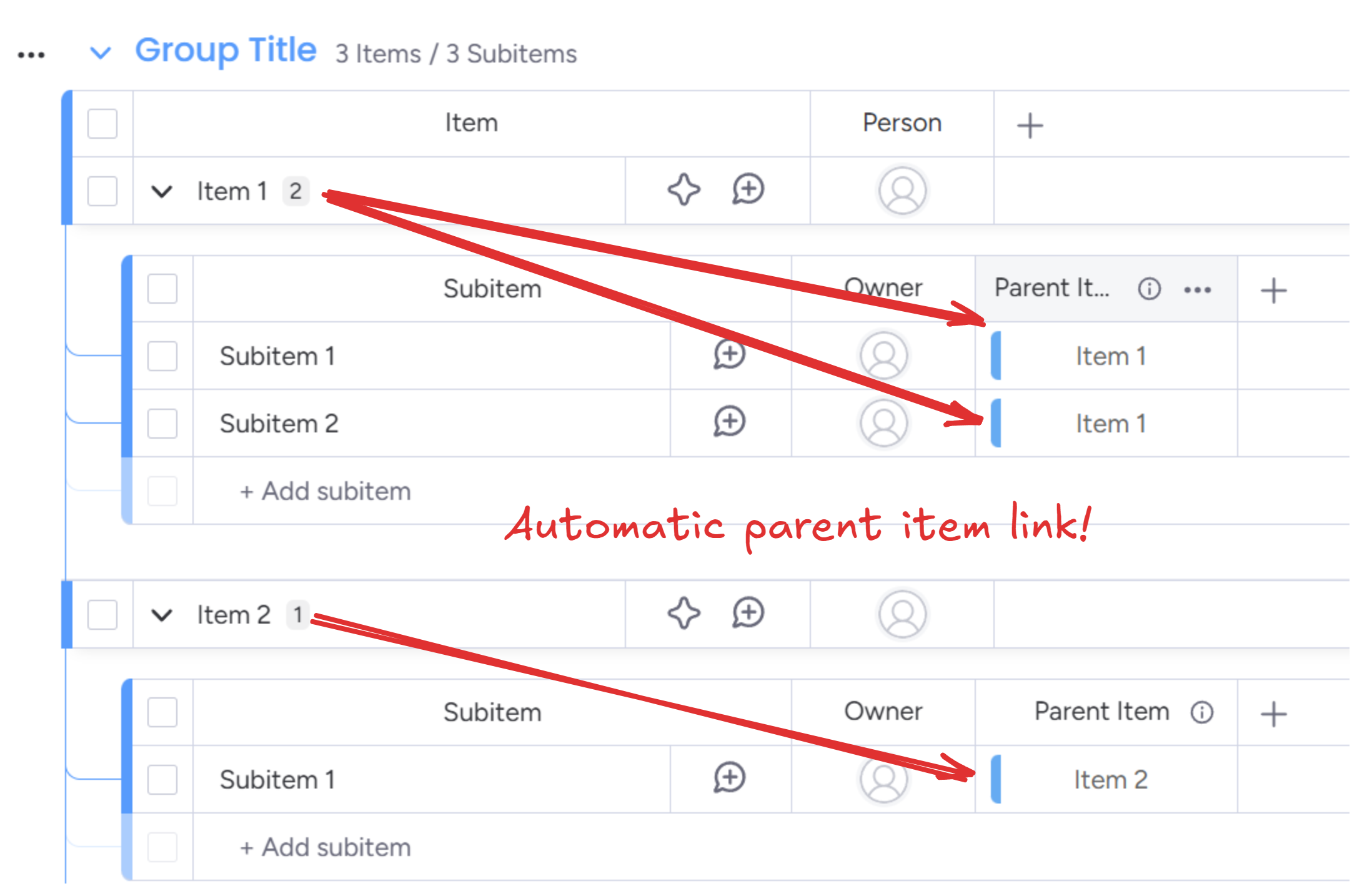
You create a subitem in monday.com. It sits under its parent item. But if you want that subitem to have a column that actually points back to the parent, you're stuck. There's no native way to auto-populate a connected boards column with the parent item reference.
If you want to mirror parent data into subitems, or use the parent in a formula, or just give your team a clickable link back to the parent from subitem views, you need that column.
Subitems Pro Automations adds this missing capability. When a subitem is created, the app automatically links the parent item to the subitem's connected boards column.
Step 1: Install Subitems Pro Automations
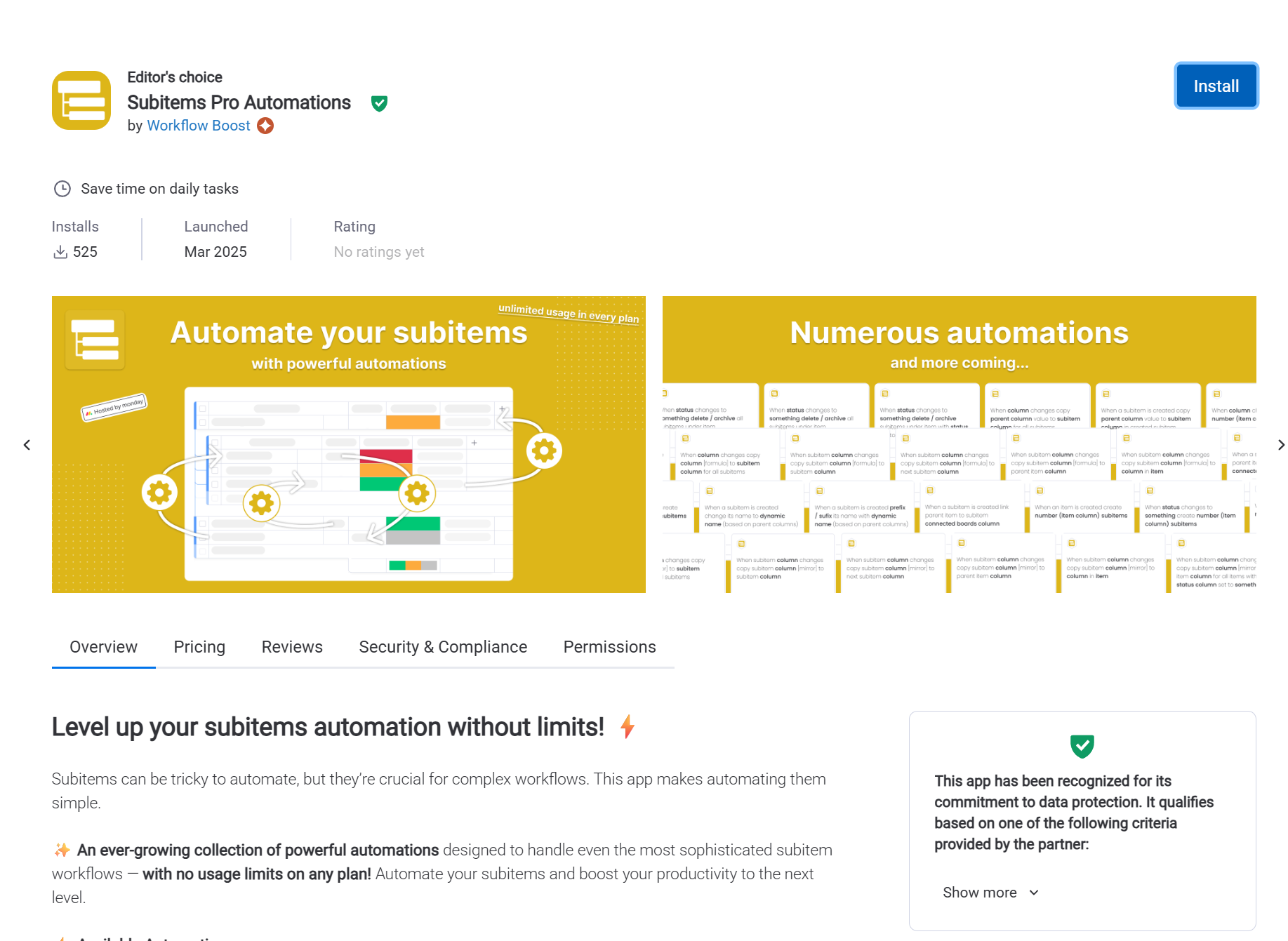
Open the monday.com marketplace, search for "Subitems Pro Automations," and install it.
Step 2: Add a connected boards column to subitems
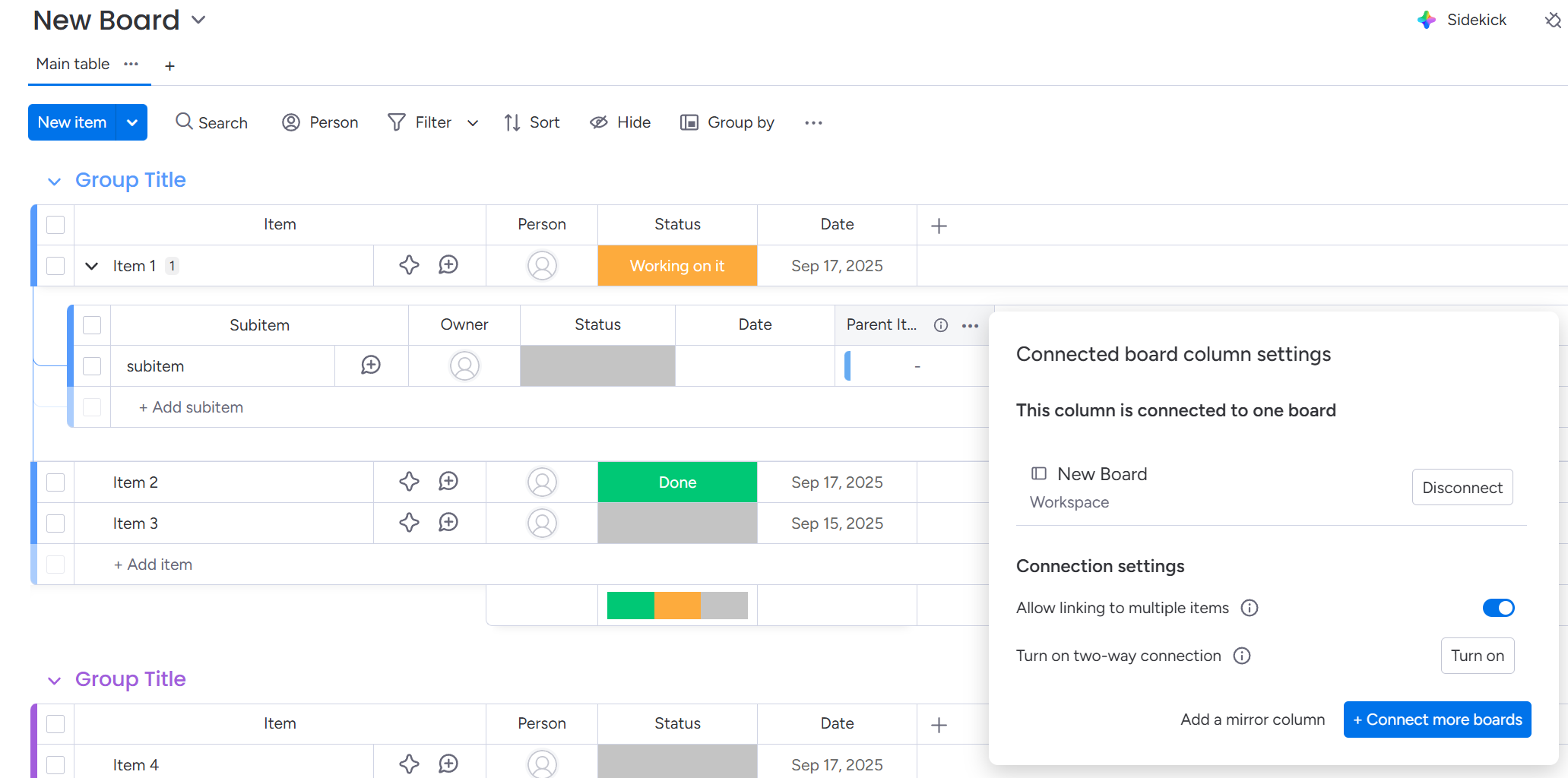
Open your subitems view and add a new column. Select "Connected Boards" and configure it to connect to the same board where your parent items live.
Name it something clear like "Parent Item" or "Linked Parent" so it's obvious what this column represents.
Step 3: Open the automations center
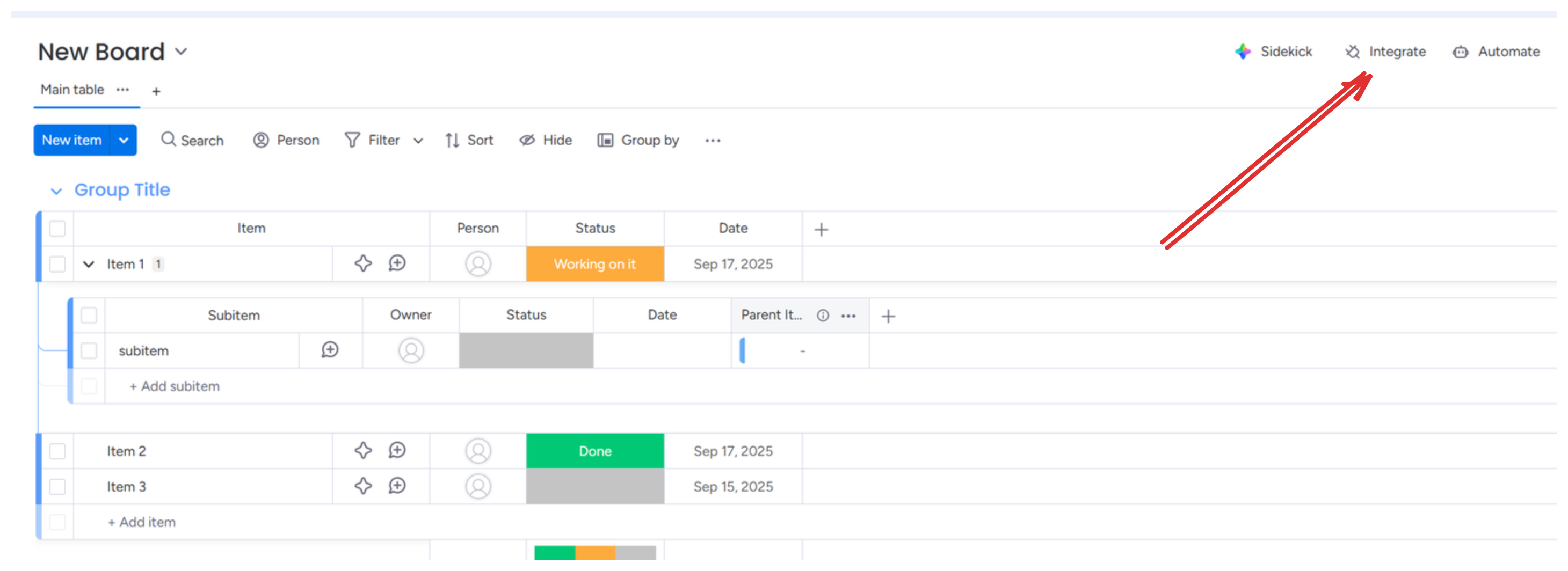
Go to your board with the parent items. Click Integrate in the top menu.
Step 4: Find Subitems Pro Automations
Go to the Integrations tab and find Subitems Pro Automations in the Apps section.
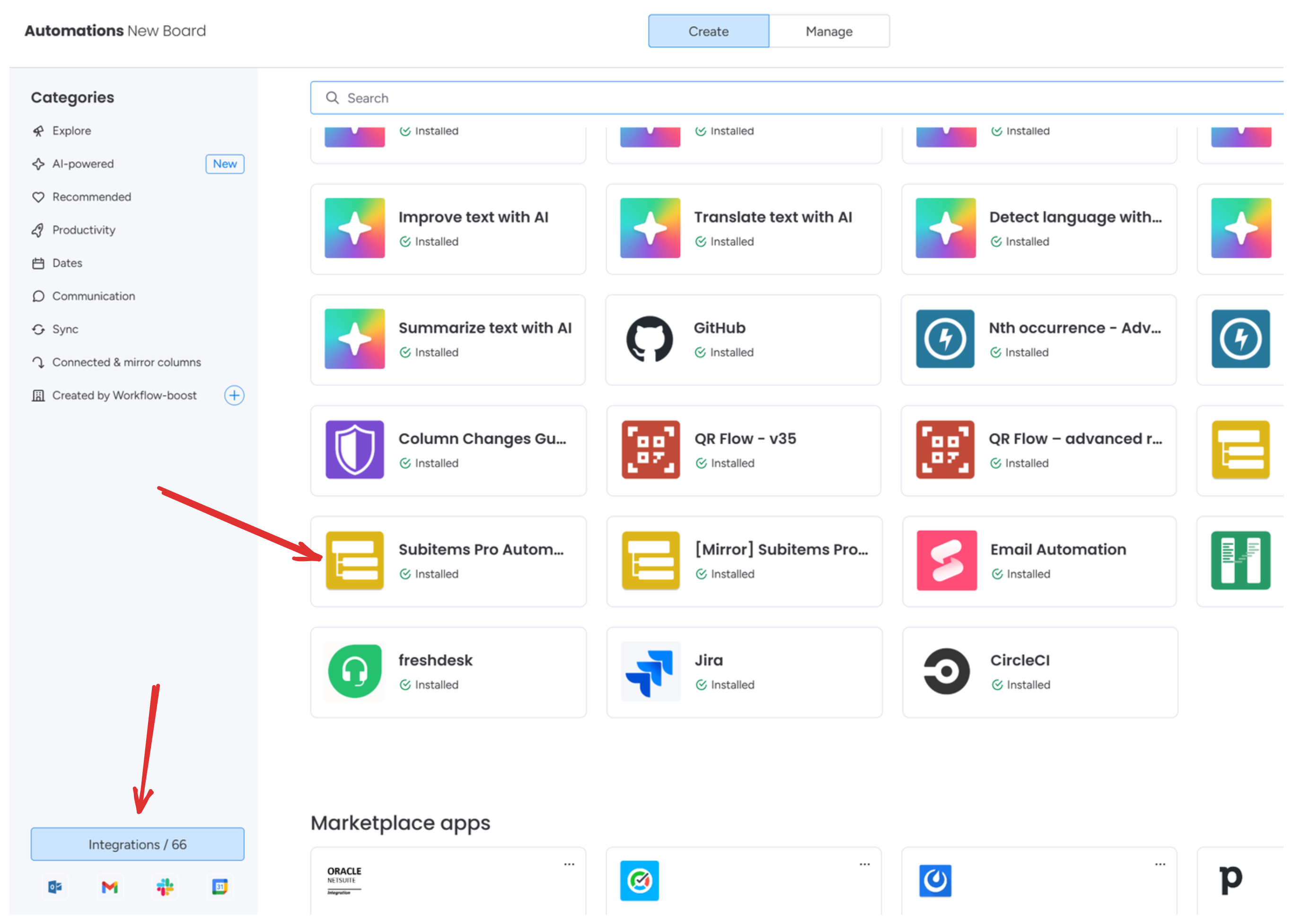
Step 5: Select the linking recipe
Pick "When a subitem is created link parent item to subitem connected boards column."
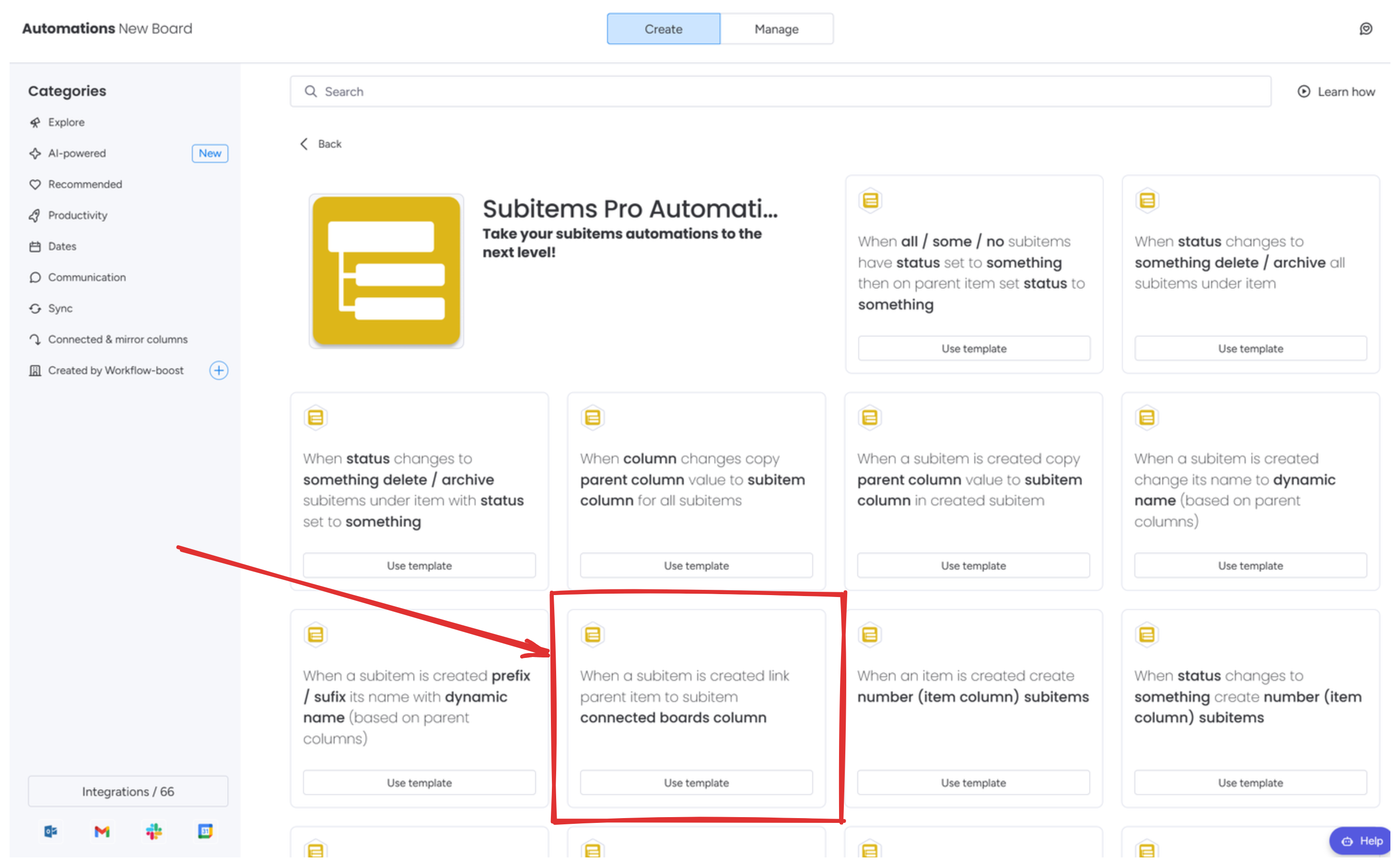
Step 6: Configure the automation
Select the connected boards column you created on your subitems. This is where the parent item reference will be stored.
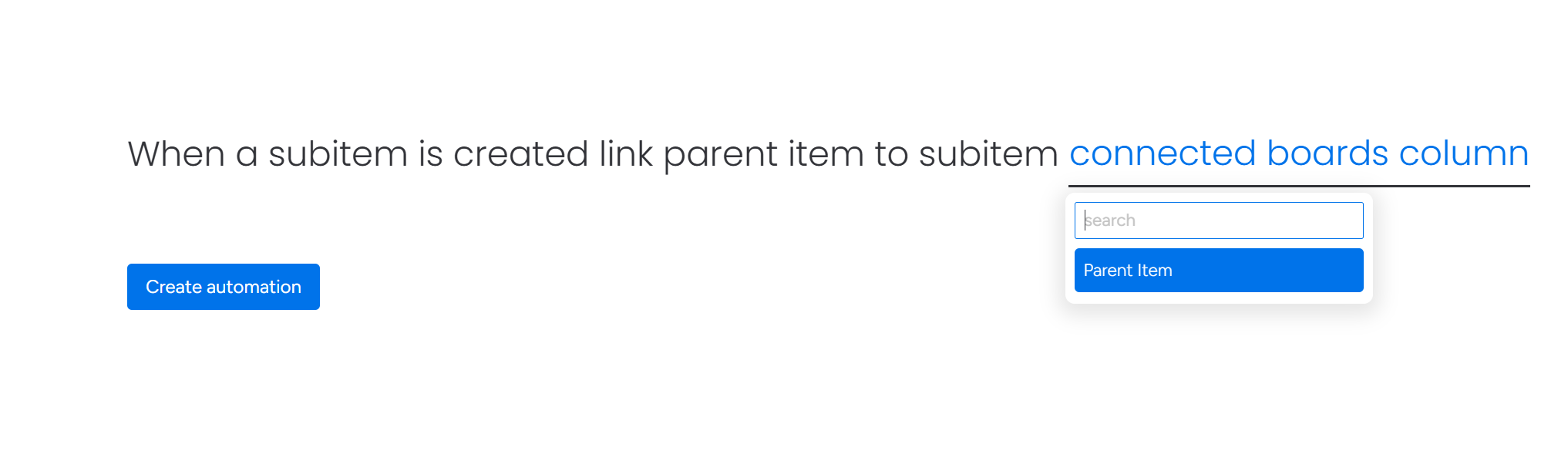
Click Create automation.
Done. Every new subitem now automatically links back to its parent.
Test it
Create a new subitem under any item. The connected boards column should populate with the parent item within a few seconds.
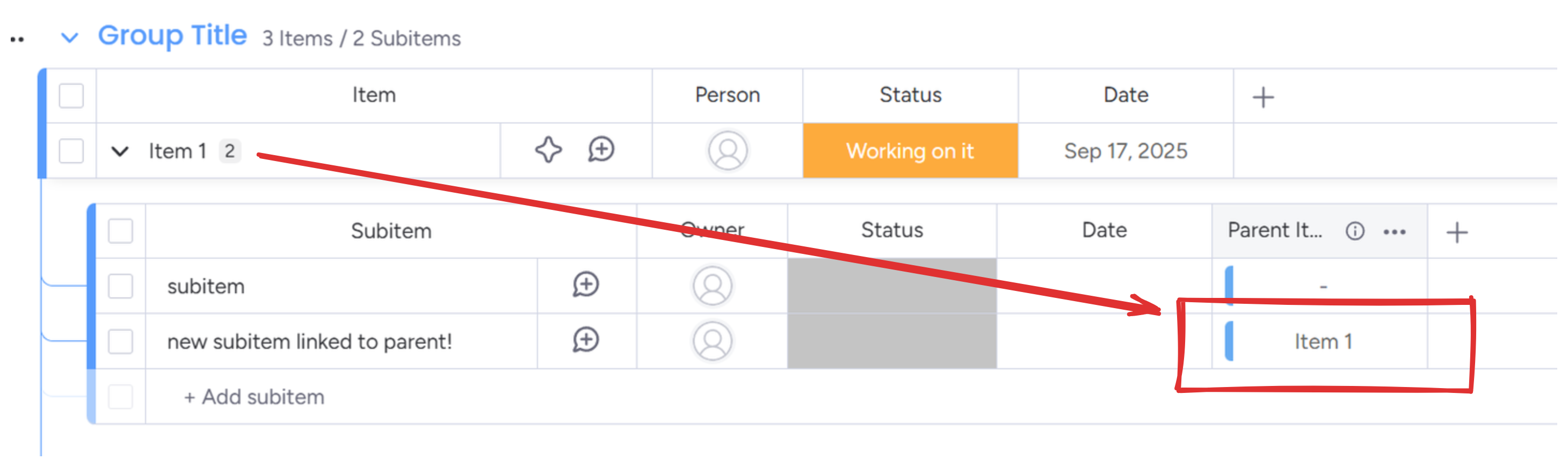
What you can do once subitems link to parents
The most immediate use is mirror columns. Add a mirror column to your subitems that pulls data from the connected parent. Project name, client, deadline. Whatever lives on the parent is now visible in the subitem view without switching context.
You can also reference the parent in formulas. Calculate a subitem due date based on the parent's start date, or pull in budget numbers for cost calculations.
If your team works from subitem views or dashboards, they now get a clickable link to the parent. No more hunting through the board structure to find where a subitem belongs.
And once you have the connection, you can build workflows that sync data in either direction between subitems and parents.
Advanced: Create and link items on another board
Sometimes you need subitems to also exist as standalone items on a different board. Maybe for reporting, or because another team needs their own view of the work.
There's a recipe for that: "When subitem is created create item in board in group and connect to created subitem using subitem connected boards column."
It creates a new item on whatever board you pick, then links it back to the subitem. I see this used most often when teams maintain a master task board that pulls in subitems from multiple project boards, or when subitems need to show up in board level dashboards that don't support subitem data directly.
Why the link matters
Subitems live under a parent, but there's no column pointing to it. The relationship is purely visual. monday.com knows the subitem belongs to that parent, but you can't reference it in formulas or mirror from it.
The connected boards column fixes that. Once the link exists, you can pull data from the parent, push data to it, and build automations that reference the relationship directly.
Why Subitems Pro Automations
The app has no usage limits on any plan. You pay a flat price and use it across as many boards as you need. Most apps in this space charge per automation or per action, which adds up when you're running automations on dozens of boards.
Over 500 companies use it. monday.com named it a New & Rising App of 2025 and has given it Editor's Choice multiple times.
It handles the edge cases too. Subitems with formulas, mirrors, connected boards pointing to other boards. If you've hit errors with other subitem tools, this one will just work.
Frequently asked questions
Why would I need to link subitems back to their parent items?
Subitems already live under their parent, but they don't have a column that points back to it. Adding a connected boards column lets you mirror parent data into subitems, use the parent in formulas, or navigate directly from subitem views to the parent item.
Can I use this with existing subitems?
The automation triggers when subitems are created. For existing subitems, you'll need to manually set the connected boards column or recreate the subitems.
What column type do I need on the subitems?
You need a connected boards column on your subitems that connects to the same board where your parent items live. The automation fills in this column with the parent item reference.
Can I also create items in another board and link them?
Yes. Subitems Pro Automations includes a recipe that creates a new item in any board and group, then links it to the subitem via connected boards. Useful for syncing subitems to a master task board.
Does this work with cross board setups?
Yes. The connected boards column can point to any board. The automation links the parent item to whatever board your subitem's connected boards column is configured for.
Related
- Update parent items from subitems - copy subitem data to parent items automatically
- Trigger automations from mirror columns - run automations when mirrored data changes
Questions
Full docs are at docs.workflow-boost.com. If you get stuck, email [email protected]. We usually reply within a few hours.