
How to Use Formula Dates in Calendar View and Automations in monday.com
You built a formula that calculates a due date. Maybe it uses WORKDAY to add business days, or subtracts 14 days from an event date. The formula works.
Then you open calendar view. Nothing shows up.
You try to set up an automation: "when date arrives, notify someone." Your formula column isn't in the dropdown.
This trips people up constantly. monday.com treats formula output as text, even when it looks like a date. The calendar won't show it. Automations won't trigger on it. Dependencies ignore it. My Week doesn't see it.
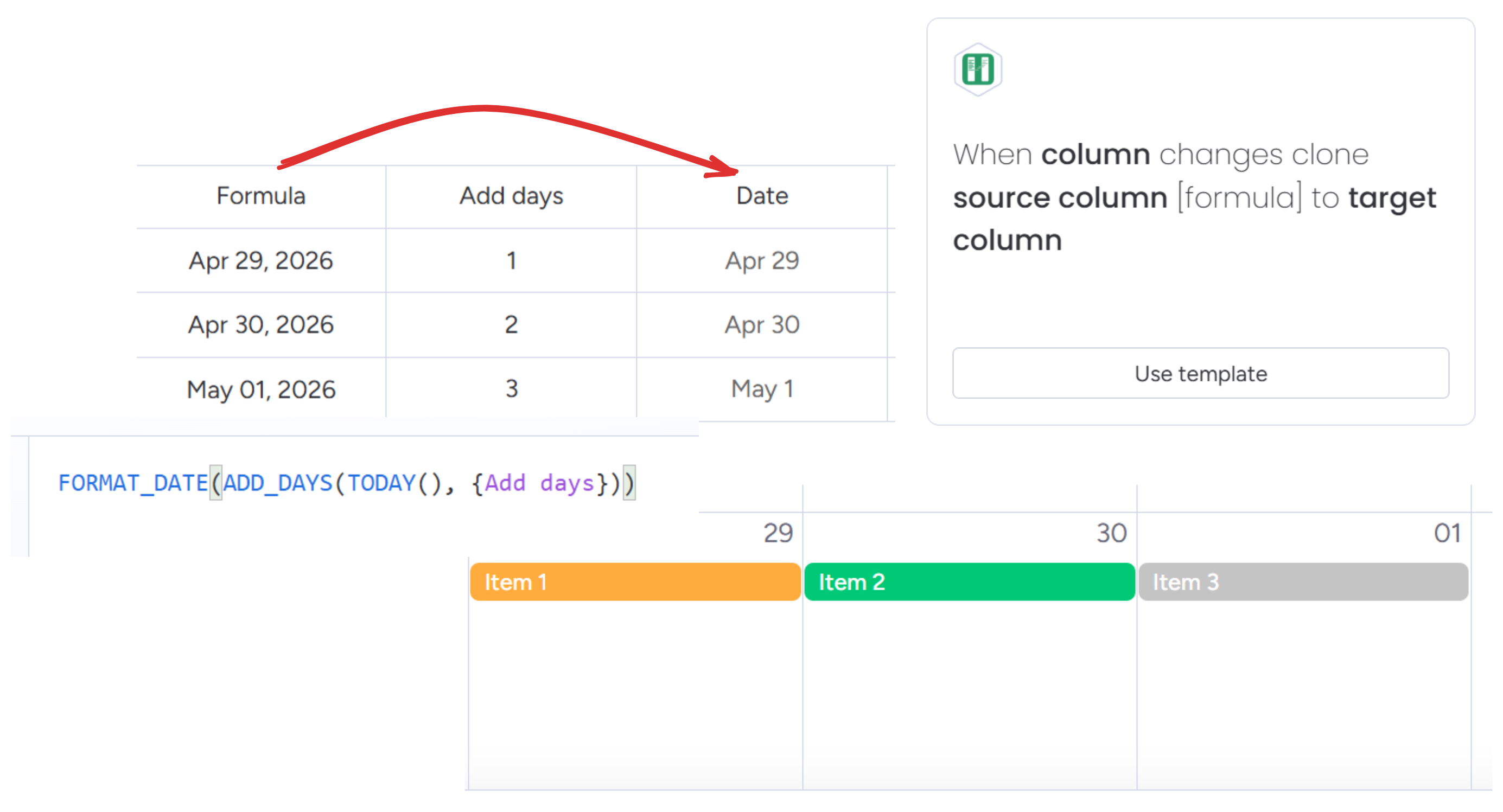
Column to Column copies your formula result to a real Date column. After that, the date shows up in calendar view, triggers automations, and behaves like any other date.
Step 1: Install Column to Column
Open the monday.com marketplace, search for "Column to Column," and install it.
Step 2: Create a Date column
Add a Date column to your board. I usually name it something like "Due Date (Calculated)" so it's obvious the value comes from automation.
Step 3: Add the automation
Go to the Automations center and find Column to Column in the Integrations tab.
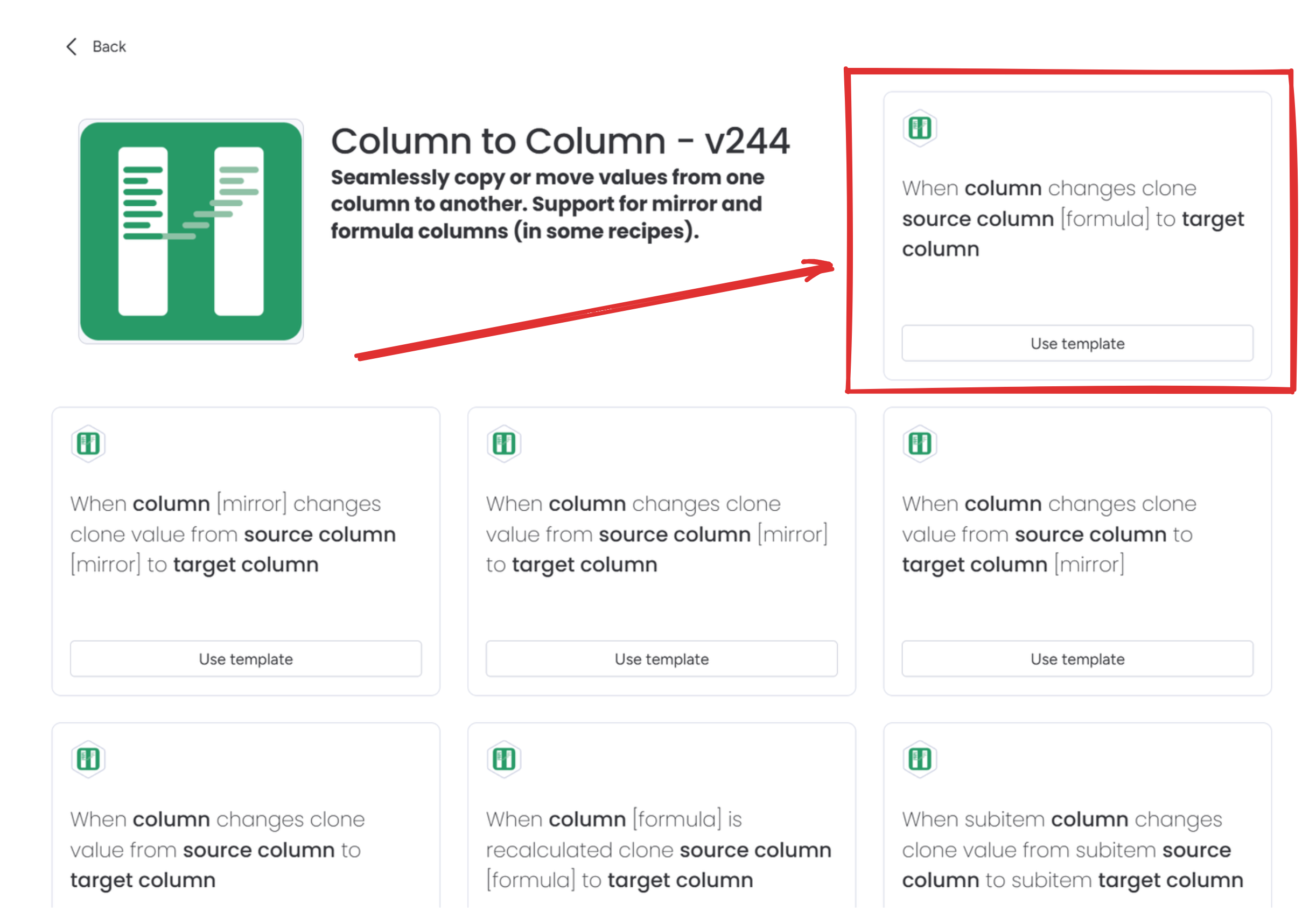
Pick "When column changes, copy column [formula] to column."
Configure it:
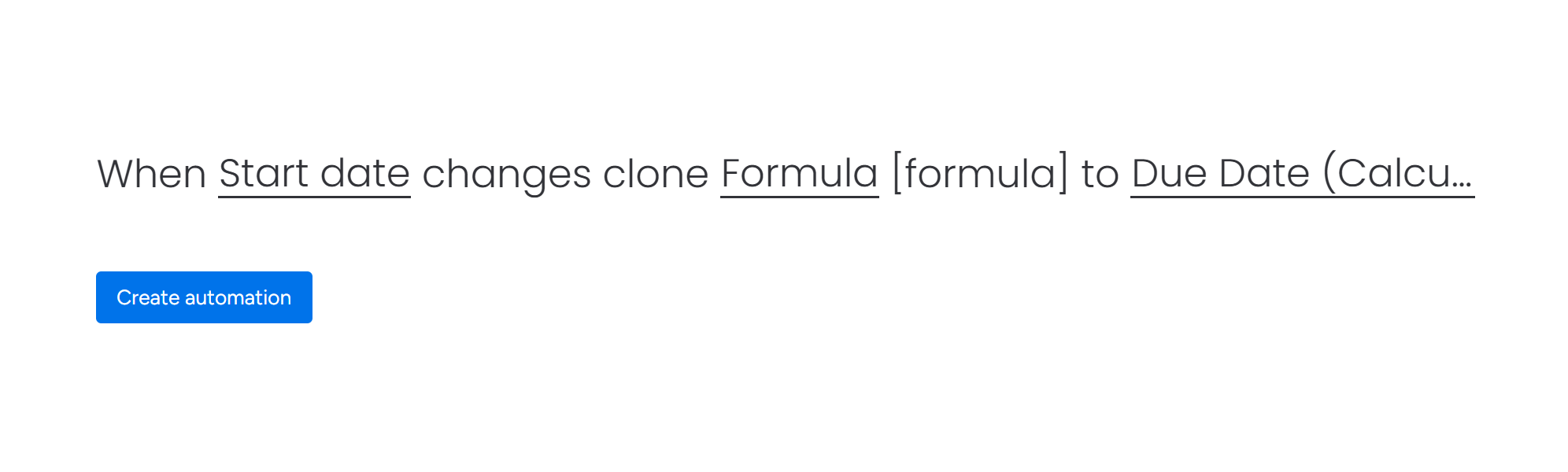
- When column changes: pick a column your formula references (the start date, duration, whatever)
- Copy Formula: select your formula column
- To column: select your new Date column
Why "When column changes" instead of "When formula recalculates"? The column changes trigger is more predictable for date copying. It fires when an input actually changes, not on every recalculation.
Step 4: Populate existing items
The automation only fires on future changes. For items already on your board I usually set up a helper "Status" column and use it to trigger the automation. You can select all items in the board, and change the "Status" column to trigger automation for all items.
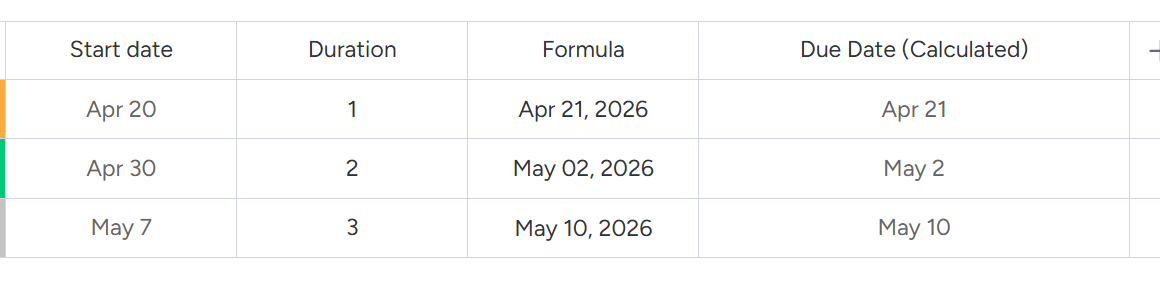
Step 5: Use the date column
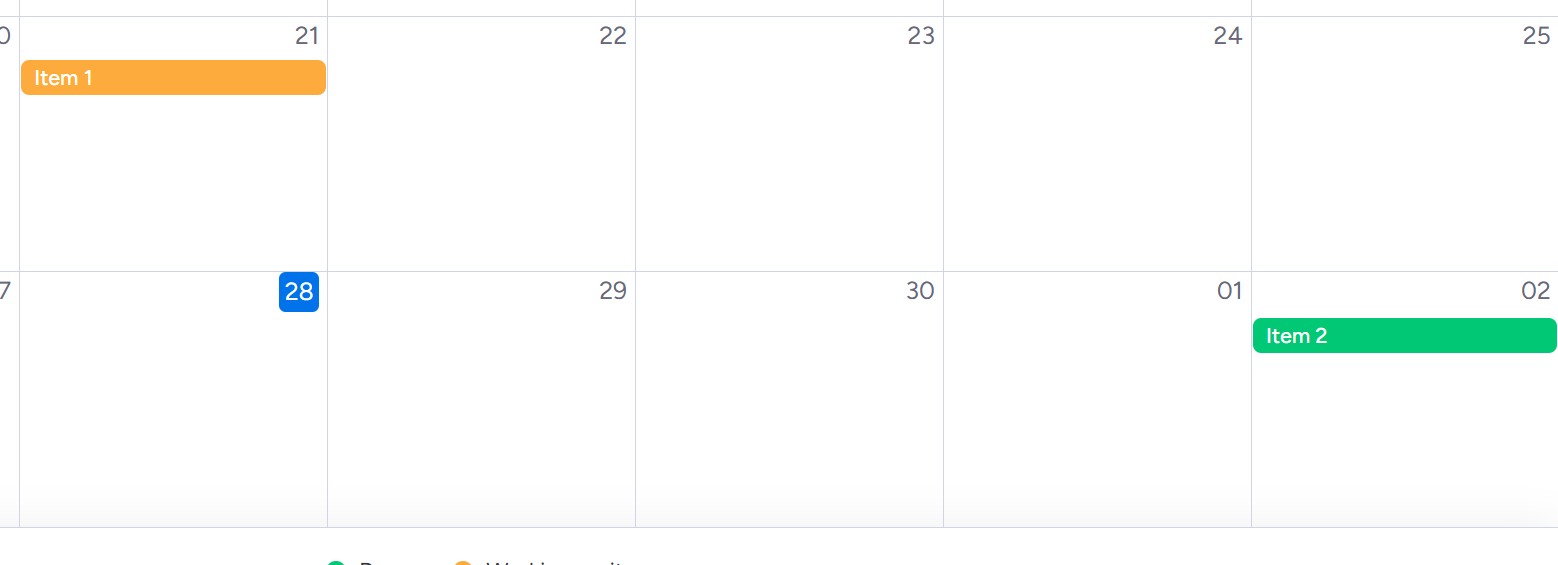
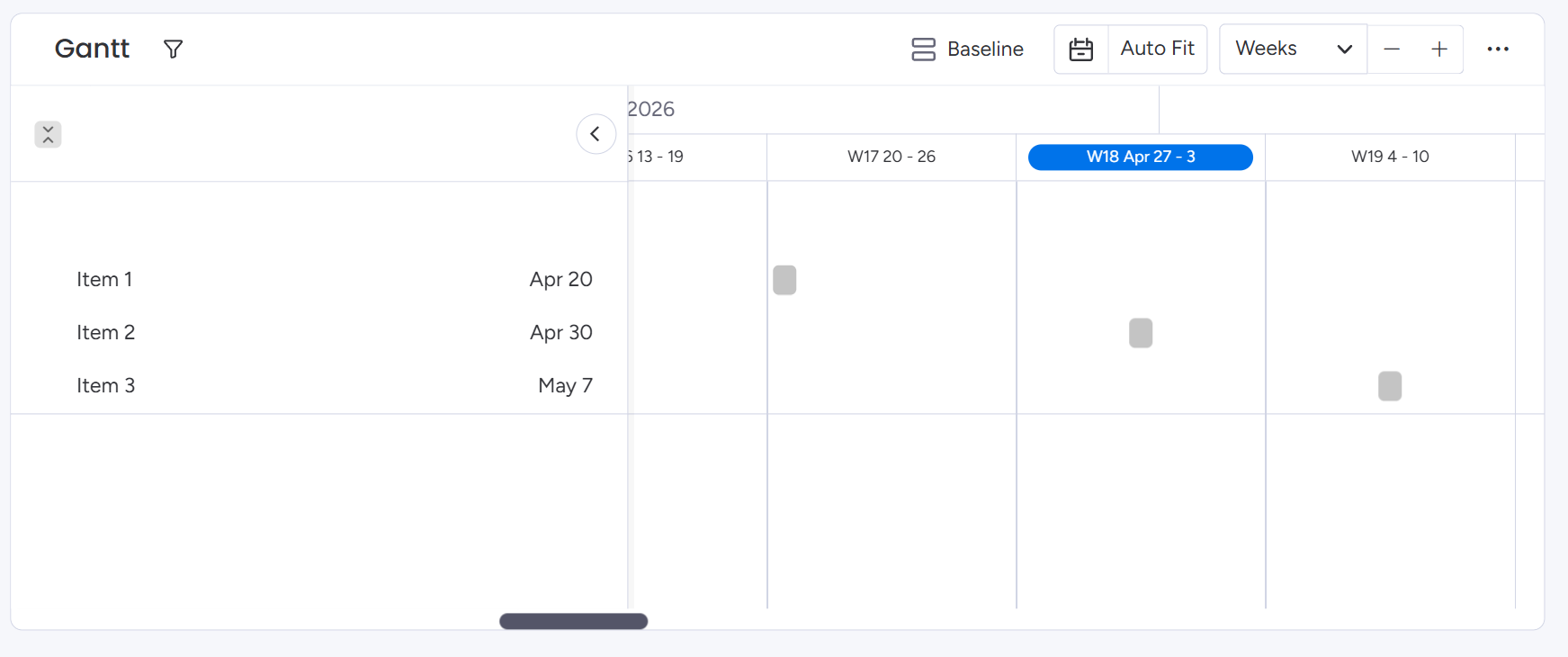
Now your formula dates show up in calendar view. You can use them in "when date arrives" automations. Dependencies work. My Week shows them.
Timezone matters when your formula includes time
If your formula outputs a time component, add a timezone. Otherwise the time can shift when it gets copied.
Without timezone (can cause issues):
CONCATENATE(FORMAT_DATE({Start Date}, "YYYY-MM-DD"), " 14:00")With timezone (correct):
CONCATENATE(FORMAT_DATE({Start Date}, "YYYY-MM-DD"), " 14:00 GMT+1")You can use GMT offsets like GMT+1, GMT-5, or abbreviations like ET, CET, PST. Column to Column reads these correctly when copying to a Date column.
If your formula only outputs a date without time (like 2026-05-15), skip this. Timezones only matter when hours and minutes are involved.
Formula examples that work with this
Add business days to a start date:
FORMAT_DATE(WORKDAY({Start Date}, {Duration}), "YYYY-MM-DD")Calculate a deadline X days before an event:
FORMAT_DATE(SUBTRACT_DAYS({Event Date}, 14), "YYYY-MM-DD")Next occurrence of a recurring task:
FORMAT_DATE(ADD_DAYS({Last Completed}, {Frequency}), "YYYY-MM-DD")Any formula that outputs a date string works. The same automation handles all of them.
What people use this for
Project scheduling is the common one. Formula calculates task due dates from project start date, you copy to Date column, now everything shows on the timeline and "date arrives" automations work.
Event management: deadlines for content submission (14 days before), speaker materials (7 days before), final review (3 days before). Each goes to its own Date column. Calendar view shows all of them.
Recurring tasks: formula adds a frequency to the last completed date. Date column triggers "when date arrives, change status to Pending."
SLA tracking: formula calculates response deadline from priority and ticket creation time. Date column triggers escalation before it's too late.
Why Column to Column
Column to Column has flat pricing, so you can copy as many formula dates as you want without counting actions. Most similar apps charge per automation run.
It works with nested formulas and formulas that reference mirror columns. If your formula produces a date string, it copies. It also handles timezone offsets correctly when your formula includes hours and minutes.
Column to Column run entirely on monday.com servers, so your data stays safe.
Related
- Trigger automations from formula columns - use formula values in automation conditions
- Formula automations step-by-step - quick setup guide with screenshots
Questions
Full docs at docs.workflow-boost.com. Email [email protected] if you get stuck.