
Use Formula Columns in monday.com Automations: Step-by-Step Guide
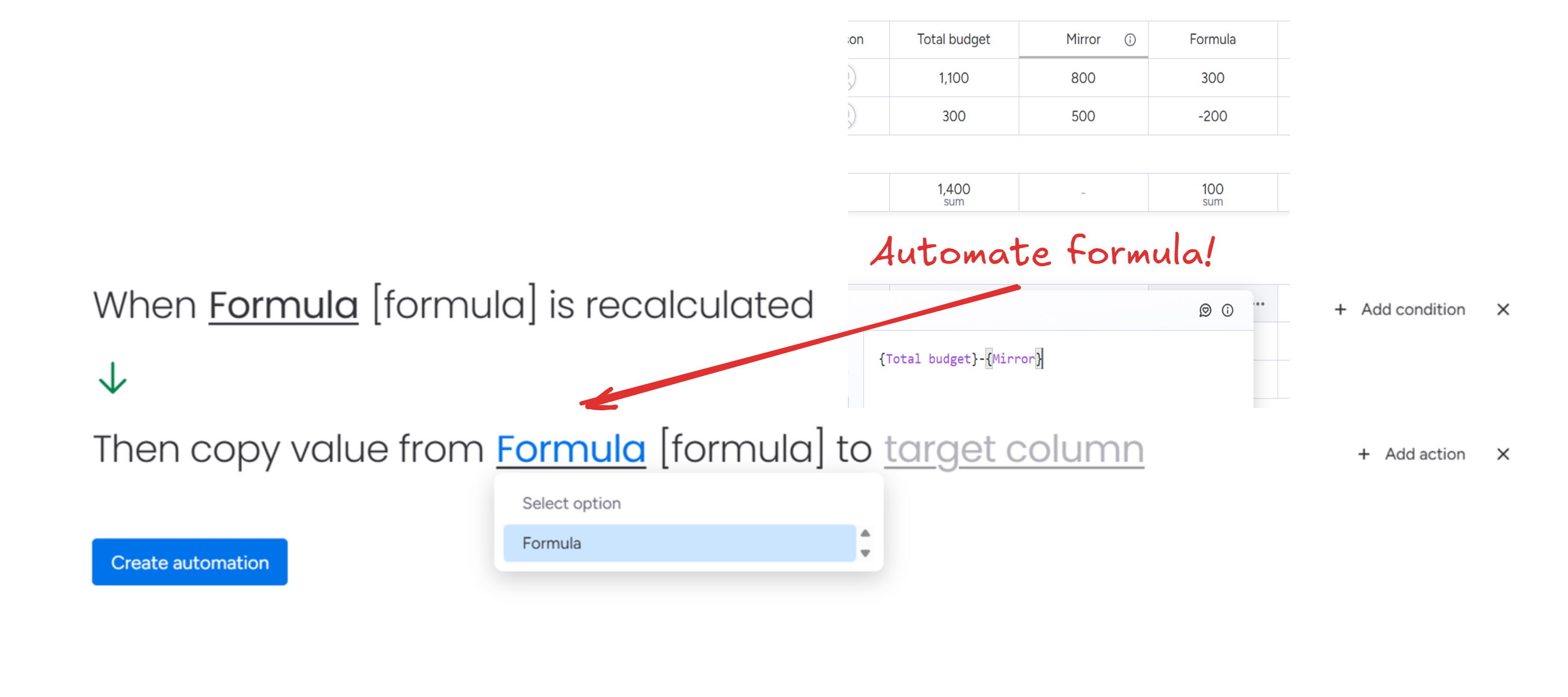
You built a formula that calculates exactly what you need. Now you want to trigger an automation when it hits a certain value. But monday.com won't let you. Formula columns simply don't appear in the automation trigger dropdown.
Column to Column fixes this. The app copies your formula result to a regular column, and regular columns can trigger any automation you want.
This takes about 5 minutes to set up.
Step 1: Install Column to Column
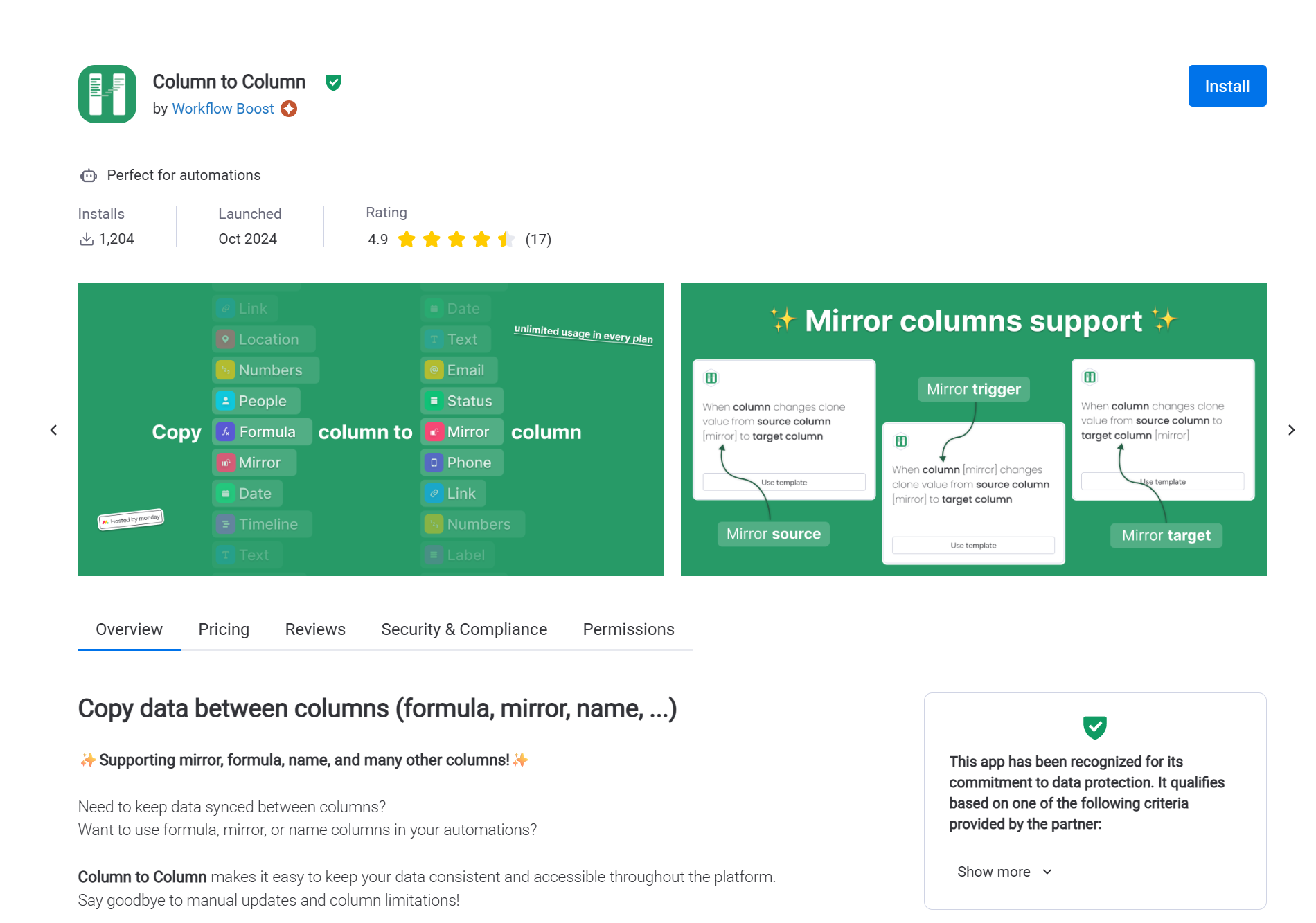
Open the monday.com marketplace, search for "Column to Column," and install it.
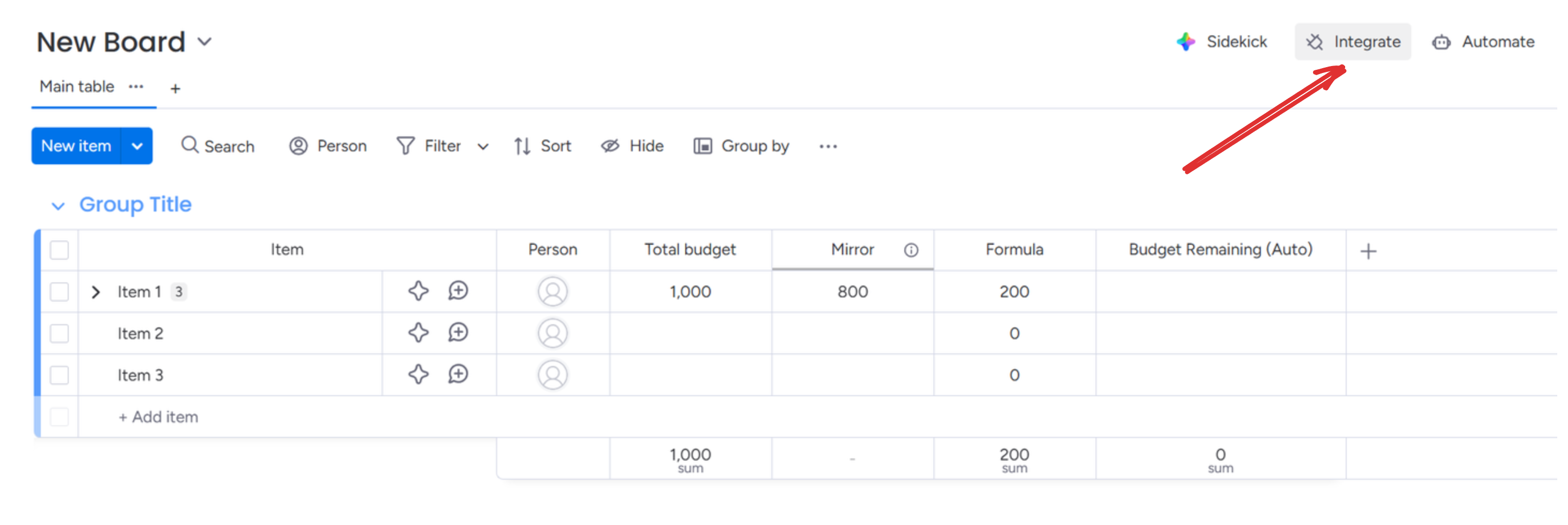
Step 2: Open the automations center
Go to the board with your formula column. Click Integrate in the top menu.
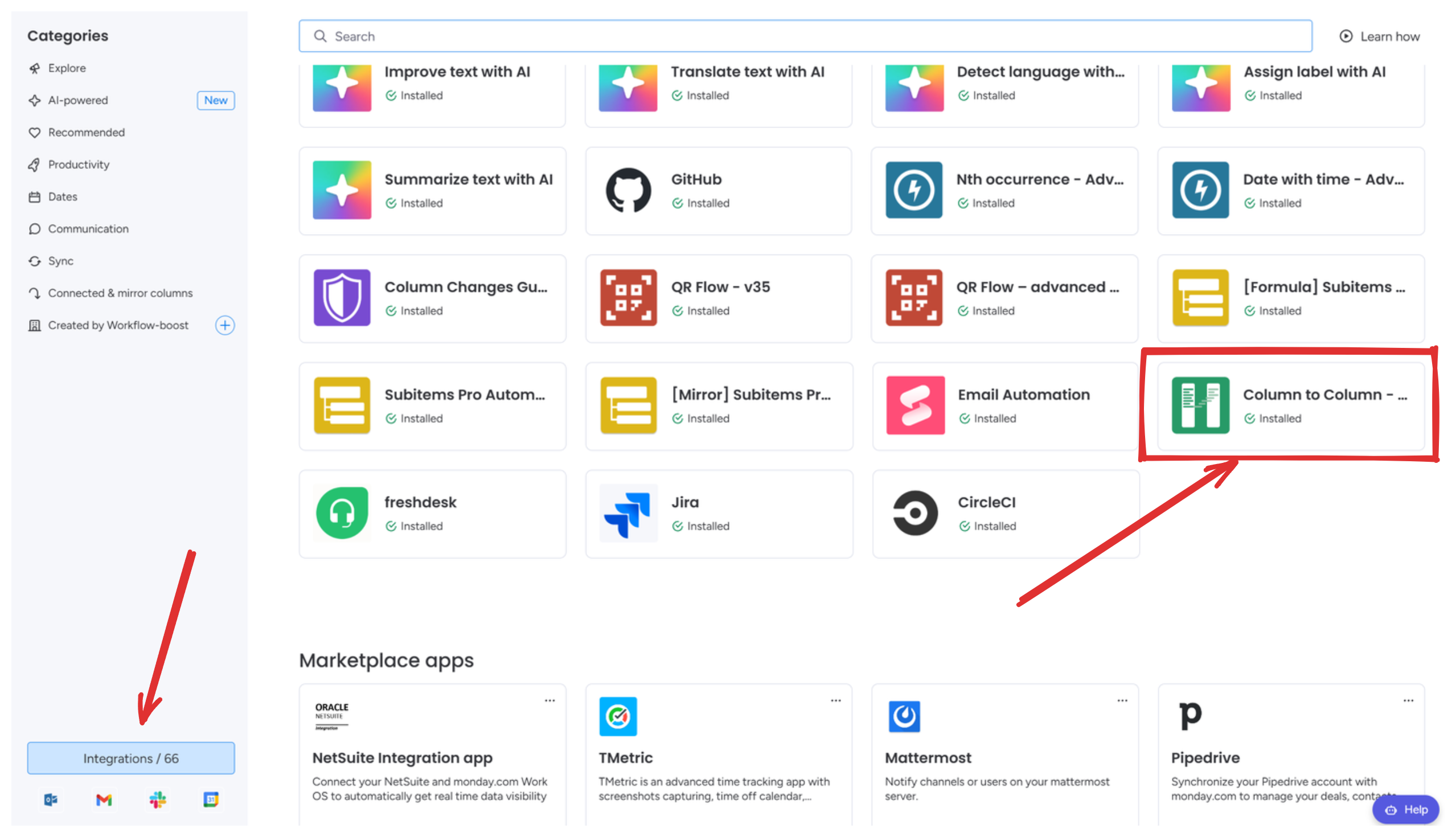
Step 3: Find Column to Column
Go to the Integrations tab and find Column to Column in the Apps section.
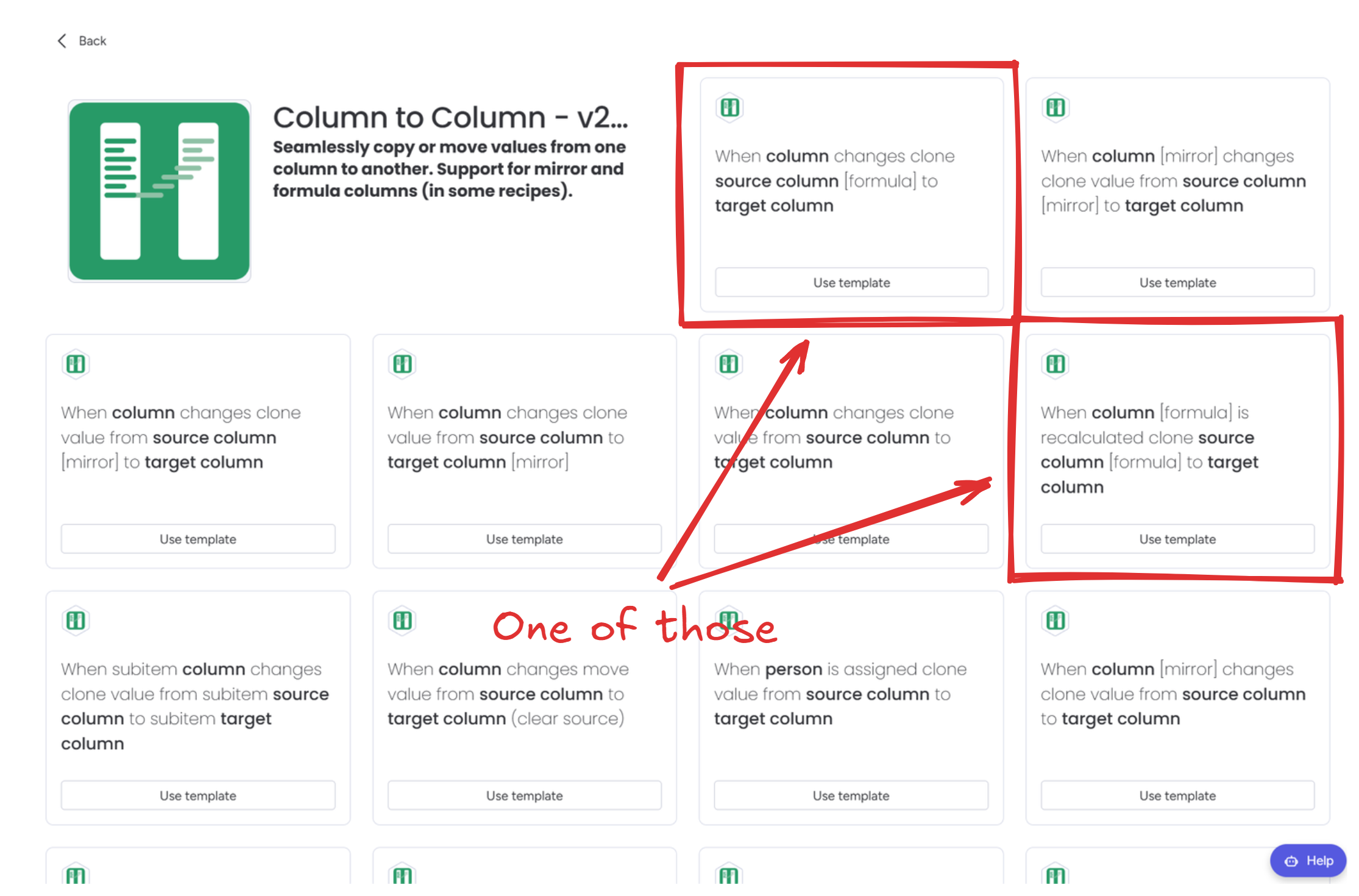
Step 4: Select the formula recipe
Pick "When formula recalculates, copy to column."
Step 5: Configure the trigger
Pick your formula column, then pick (or create) a destination column to receive the result. I usually name it something like "Budget Remaining (Auto)" so it's obvious this column is automation-driven.
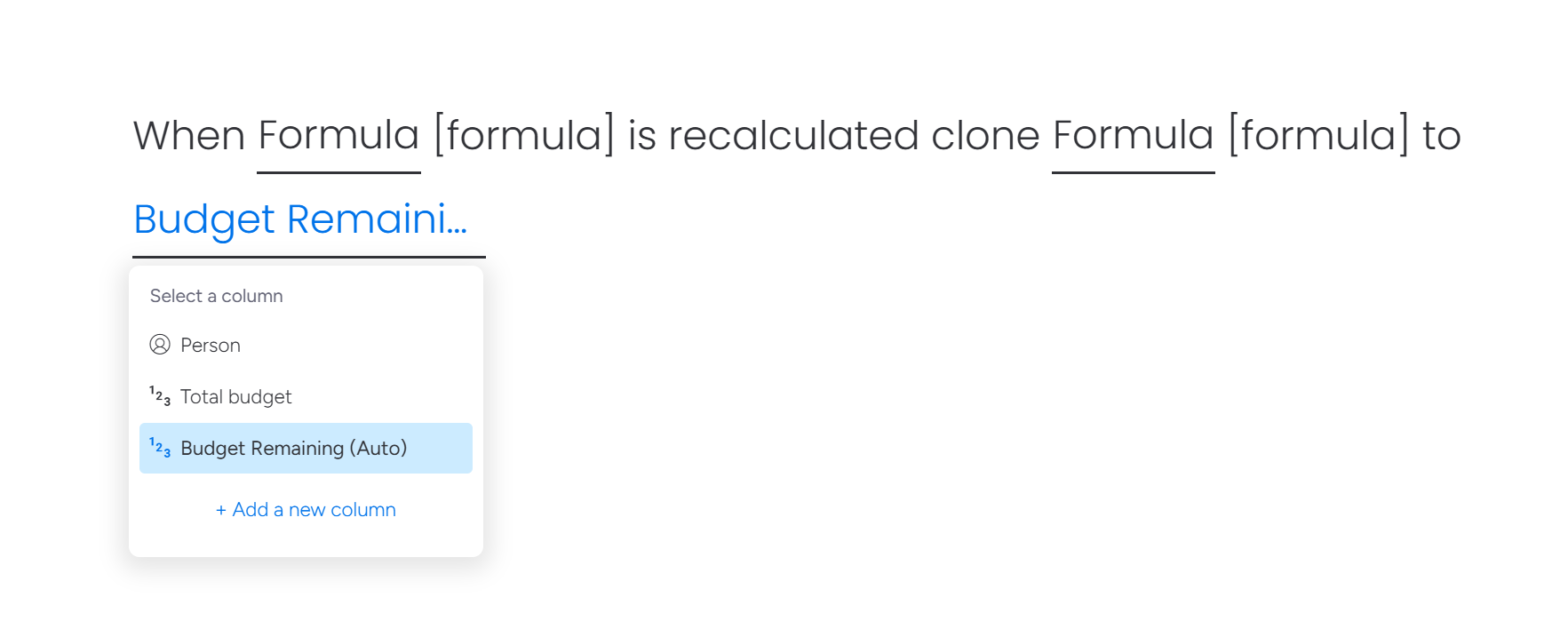
Click Create automation.
Step 6: Add your follow-up automation
Your formula result now copies to a regular column. That column can trigger any native monday.com automation.
Add another automation using your destination column. Some examples:
- "When Budget Remaining (Auto) is less than 0, change Status to Over Budget"
- "When Score (Auto) is greater than 80, notify someone"
- "When Days Left changes, create an item in another board"
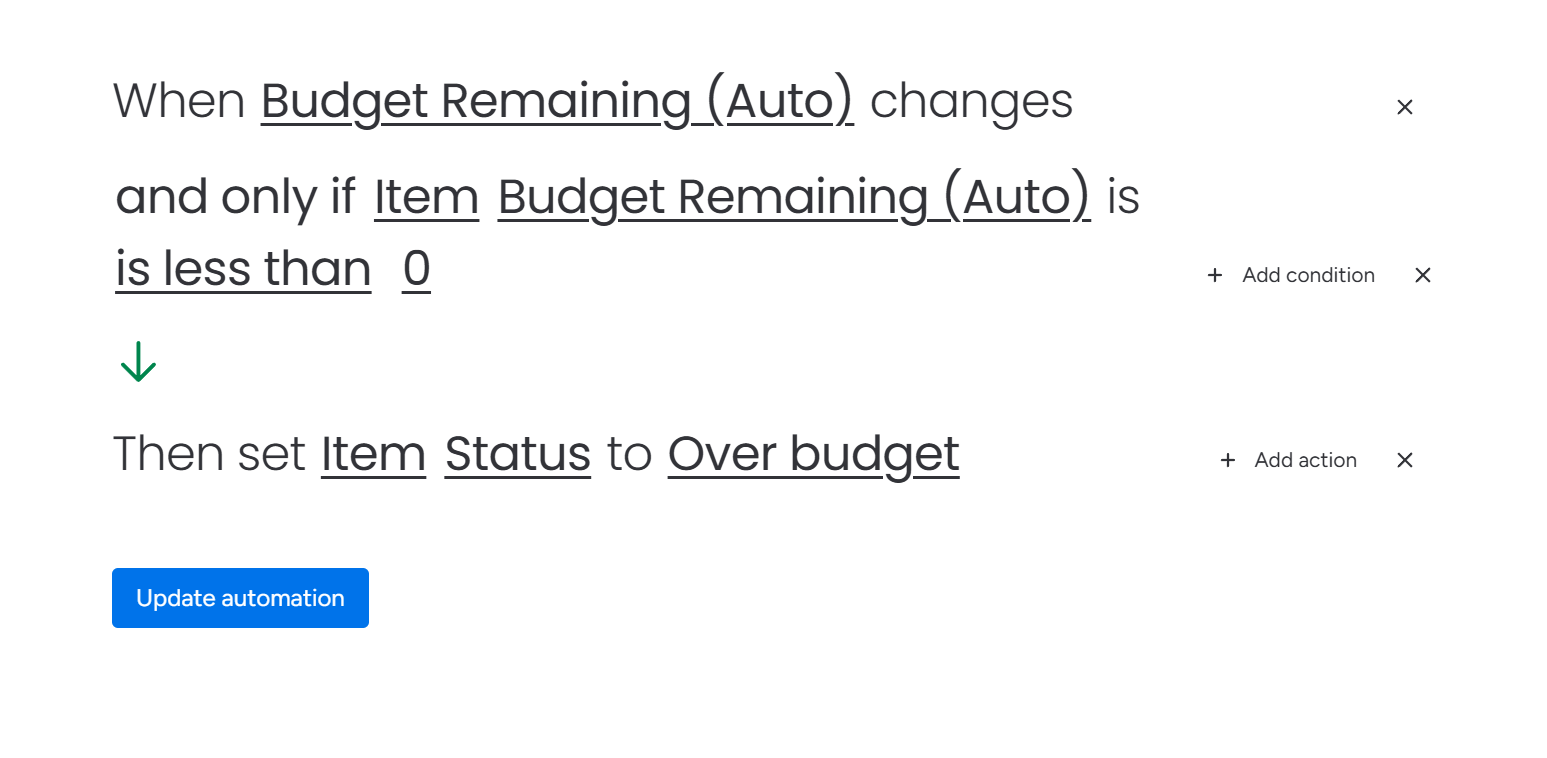
Done. Your formula now triggers automations.
Test it
Change a value that your formula references. The destination column should update within a few seconds, and your follow-up automation should fire right after.
What people use this for
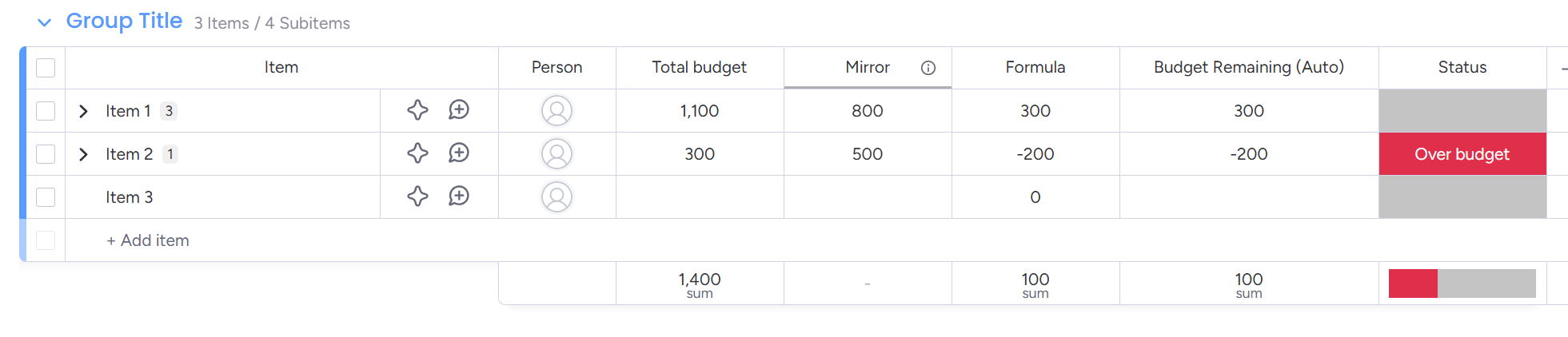
Budget tracking is the most common one I see. Formula calculates what's left, automation flips the status to "Over Budget" when it goes negative.
Priority scoring works well too. You combine urgency and importance into a single number, then notify the right person when it crosses a threshold.
SLA tracking: show time remaining in a formula, escalate before the deadline hits.
Capacity planning is popular with agencies. Formula calculates utilization percentage per person, automation warns managers when someone gets overloaded.
Why Column to Column
Column to Column has no action limits on any plan. You pay a flat price and use it on as many boards as you need. Most competing apps charge per automation or per action, which adds up fast.
Over 1,000 companies use it. The app has been Featured, received Editor's Choice, and was named one of the fastest growing apps in 2025 in the monday.com marketplace.
It handles formulas that reference other formulas, mirror columns, and nested functions. If you've tried other solutions and hit errors on complex formulas, this one will work.
No API keys, no external services. You set it up once and it runs.
Related
- How formula triggers work under the hood - technical details, edge cases, and limitations
- Trigger automations from mirror columns - same approach, but for mirror columns instead of formulas
Questions
Full docs are at docs.workflow-boost.com. If you get stuck, email [email protected]. We usually reply within a few hours.