
How to Trigger Automations When Mirror Columns Change in monday.com
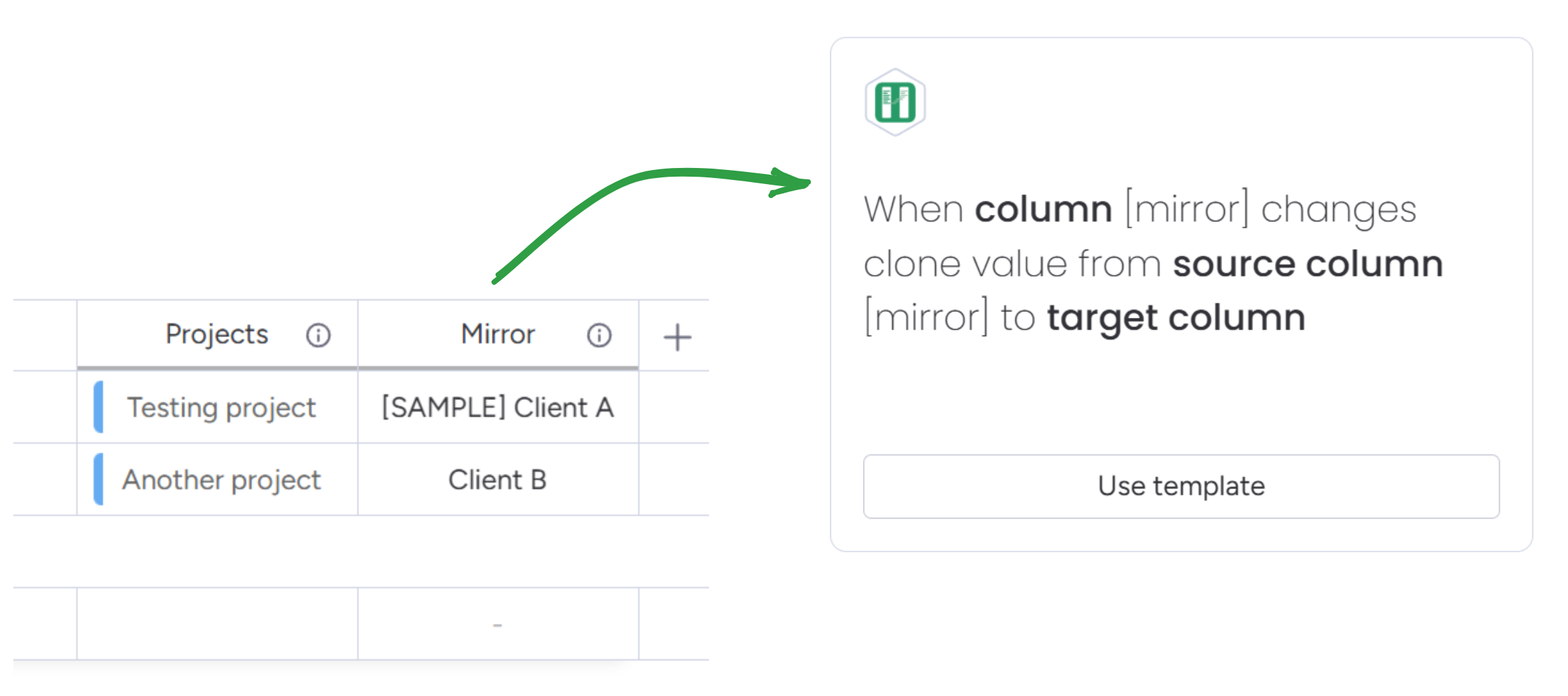
You've set up a connect column between two boards. You're mirroring status from the source board so you can see it on your current board. Now you want to trigger an automation when that mirrored status changes - send a notification, update another column, move the item to a different group.
But monday.com won't let you. Mirror columns don't appear in the automation trigger dropdown. The data is right there on your board, but automations can't see it.
Column to Column adds a "When mirror column changes" trigger that makes this work.
Why mirror columns don't trigger automations
This trips up nearly everyone who tries to build cross-board workflows in monday.com. You connect two boards, mirror a status column, and expect to build automations around it. Then you open the automation center and the mirror column just isn't there.
Mirror columns display data from another board. They're references, not stored values. monday.com's automation system only watches columns that contain actual data on the current board. Mirrors don't qualify.
So you can't use "when mirror column changes" as a trigger. You can't include mirror values in conditions. You can't reference them in notification templates. There's no native way to react to changes happening on connected boards.
People hit this constantly. In the monday.com community forums, questions about triggering automations from mirror columns show up every week. The answer is always the same: not supported. It's been that way for years.
How Column to Column makes mirrors triggerable
Column to Column creates webhooks not just on your current board, but on every board you're mirroring from. When something changes on the source board, the app detects it and fires your automation.
Native monday.com automations only watch the current board. Column to Column watches connected boards too, which is why it can catch mirror changes.
When you set up a "When mirror column changes" automation, the app identifies every board your mirror column references and creates webhooks on those boards. It also creates a webhook on your current board to watch the connect column itself. If you have multiple automations using the same mirror trigger, they share the same underlying webhooks.
You pick the mirror column, choose your action, save. The app does the rest.
What you can do when a mirror changes
The mirror trigger isn't limited to copying values. Most people use it to copy mirrored data into a native column so it becomes editable and usable in other automations. But you can also change a status when the mirrored value hits a certain state, send notifications, move items between groups, or push data back to the source board.
The trigger catches any change to the mirrored data. Status flip, number update, text edit on the source board - all of it fires the automation.
Setup
- Install Column to Column from the monday.com marketplace. It needs to be on your current board and on every board being mirrored from.
- Open the automations center and find the Column to Column recipes.
- Select "When mirror column changes" as your trigger.
- Pick the mirror column you want to watch.
- Choose your action - copy to column, change status, whatever you need.
- Save. The app creates the webhooks automatically.
The first time the mirror changes after setup, your automation fires.
Cross-board workflow examples
Say you have an internal Projects board connected to a client-facing Status board. You mirror the client approval status so your team can see it. When the client marks something "Approved", you want to automatically update your internal project status and notify the team. This is what most people use the app for.
Same idea for sales: Deals board connects to Orders board, you mirror the order status back to the deal. When it flips to "Shipped", the deal gets marked fulfilled automatically.
Or multi-department handoffs: Engineering connects to QA, mirrors the QA status. QA marks something "Passed", the engineering ticket updates on its own.
Inventory works too. Products board connects to Warehouse, mirrors stock levels. Stock drops below a threshold, trigger a reorder or status change.
Technical details
The person setting up the automation needs permission to create webhooks on all connected boards. If you're a viewer on the source board, the setup fails.
If you have multiple automations triggering on the same mirror column, they share the same underlying webhooks. Deleting one doesn't break the others.
When a connect column links one item to multiple items on another board, the mirror shows combined values. Changes to any of those connected items will trigger your automation.
Nested mirrors work too. If your mirror column mirrors another mirror on the source board, the app sets up webhooks at each level. The chain can go as deep as you want.
Limitations
If someone changes the connect column to point to a different board, or changes which column is being mirrored, the automation stops working. You'll need to recreate it. The app can't detect structural changes like this automatically.
Because the app creates webhooks on connected boards, it must be installed on all of them. Mirroring from 5 boards means Column to Column needs to be on all 5.
Every change to a mirrored column triggers webhooks. On boards with hundreds of items changing frequently, that's more webhook traffic. Usually fine, but worth thinking about for very large setups.
Getting started
Column to Column is available in the monday.com marketplace. After installing, the mirror automation recipes show up in your automations center alongside native ones.
For setup details, see the mirror column documentation or email us if you have a specific setup in mind.
Related
- Copy mirror columns to regular columns - if you need the mirrored data editable or usable in reports
- Trigger automations from formula columns - same approach for formula columns instead of mirrors