
How to Sync Clockify Time Tracking with monday.com
If you track time in Clockify and manage projects in monday.com, you already know the pain. The data lives in two places, and someone ends up exporting CSVs or typing hours into monday.com manually every Friday afternoon.
monday.com does have a built-in time tracking column. But it lacks the reporting depth and billable rate handling that make Clockify worth using in the first place. Most teams I've talked to that tried switching to monday's native tracking went back within a month.
Clockify Connector syncs time entries, projects, tasks, and clients between Clockify and monday.com. Two-way or one-way, your choice. Changes propagate within about 5 seconds.

Can you connect Clockify to monday.com?
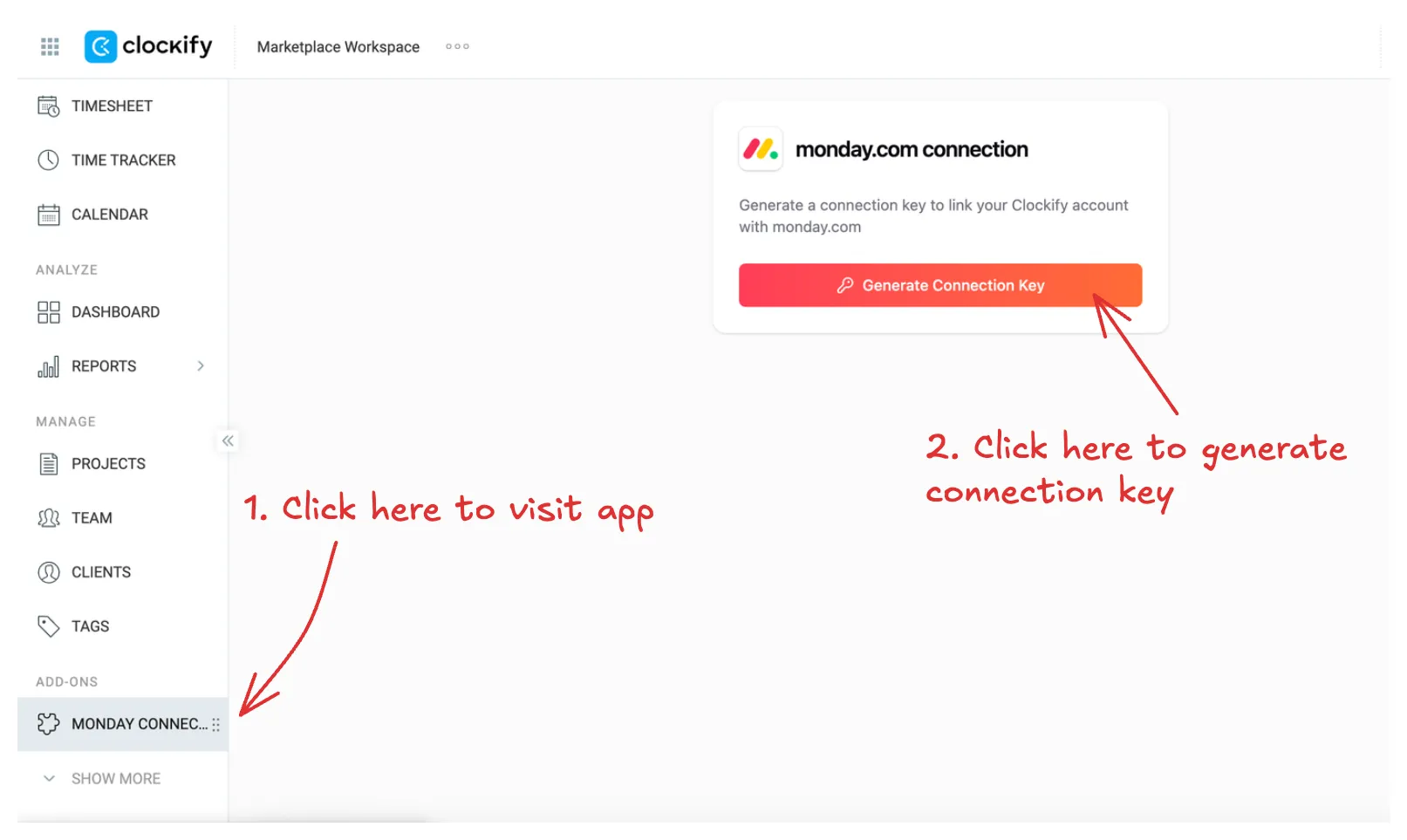
Yes. Clockify Connector links both platforms through a connection key system. You install the app on both marketplaces (Clockify's and monday.com's), then generate a key in Clockify and paste it into a board view in monday.com. That's the handshake.
Once connected, you choose what to sync: time entries, projects, tasks, or clients. Each entity type gets its own board view and its own field mapping. The app doesn't dump everything into one board. You control exactly which fields flow between platforms and in which direction.
The connection uses a key you generate in Clockify, not OAuth tokens or API keys stored in settings. You can revoke it anytime if you need to disconnect a board.
What data syncs between Clockify and monday.com?
Four entity types: time entries, projects, tasks, and clients. Each syncs independently through its own board view configuration.
What makes this more useful than a flat data dump is relationships. If your Clockify time entries reference specific projects, that relationship carries over. The app uses monday.com's connected boards columns to link synced entities, so a time entry item on one board connects to the matching project item on another board. Same for task-to-project and project-to-client.
This means you can build monday.com dashboards that pull time data filtered by project, client, or task without losing the relational context that makes the data useful.
For time entries specifically, the sync covers start time, end time, duration, description, project assignment, task assignment, tags, user, and billable status. Clockify custom fields sync too. They map to whatever monday.com column type makes sense during setup.
How to set up Clockify Connector
The setup takes about five minutes. You'll need admin access to both your Clockify workspace and your monday.com account.
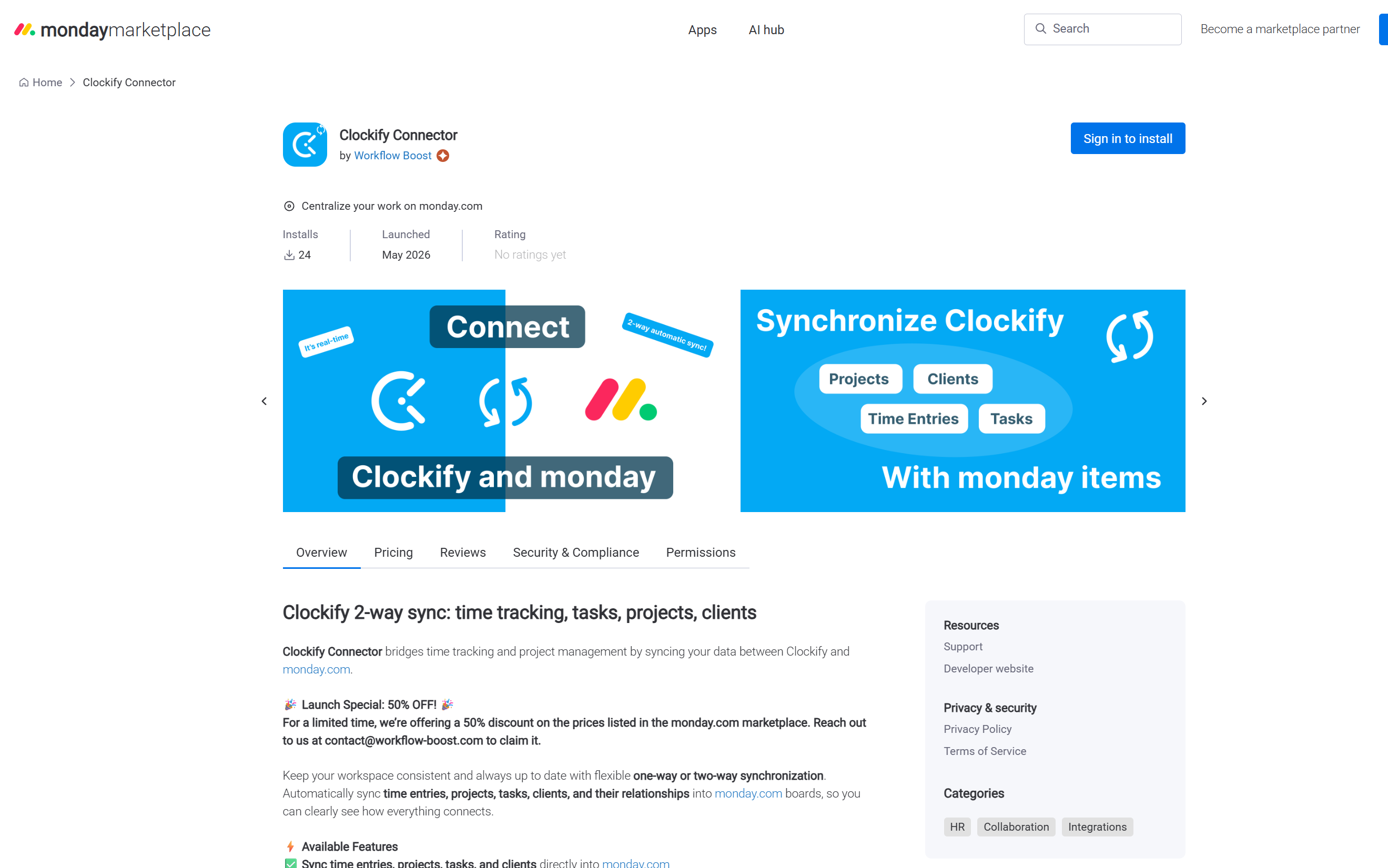
- Install Clockify Connector from the monday.com marketplace.
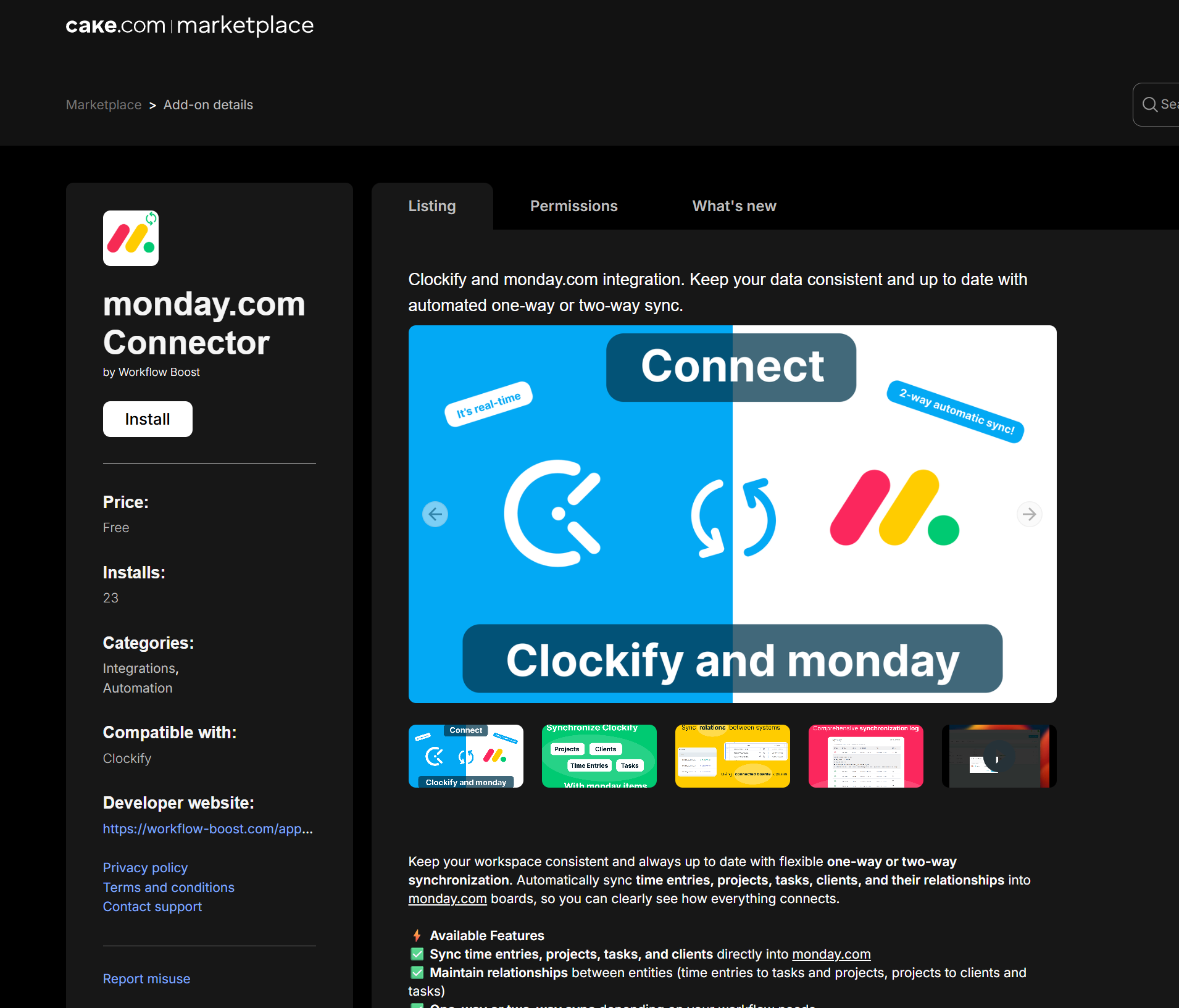
- Install the Clockify Connector app from the Clockify marketplace as well. The app needs presence on both sides to establish the connection.
- In Clockify, open the Clockify Connector settings and generate a connection key. Copy it.
- In monday.com, add a new board view called "Clockify 2-way sync" to the board where you want synced data to land.
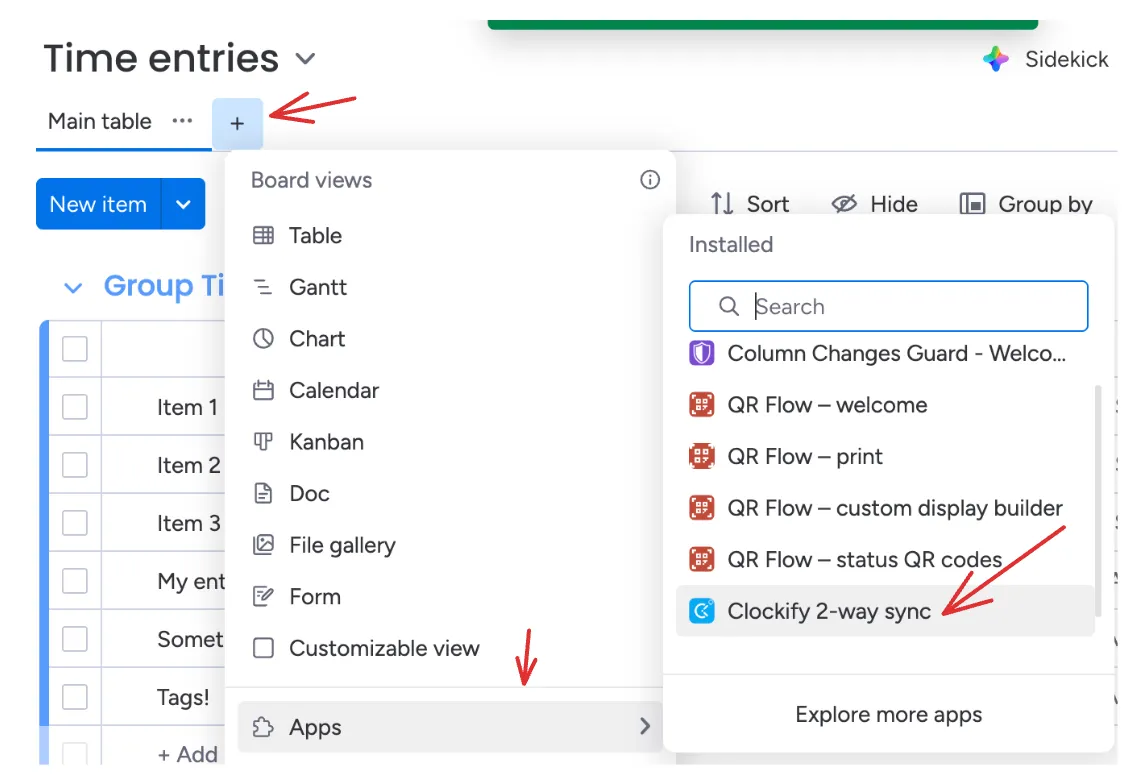
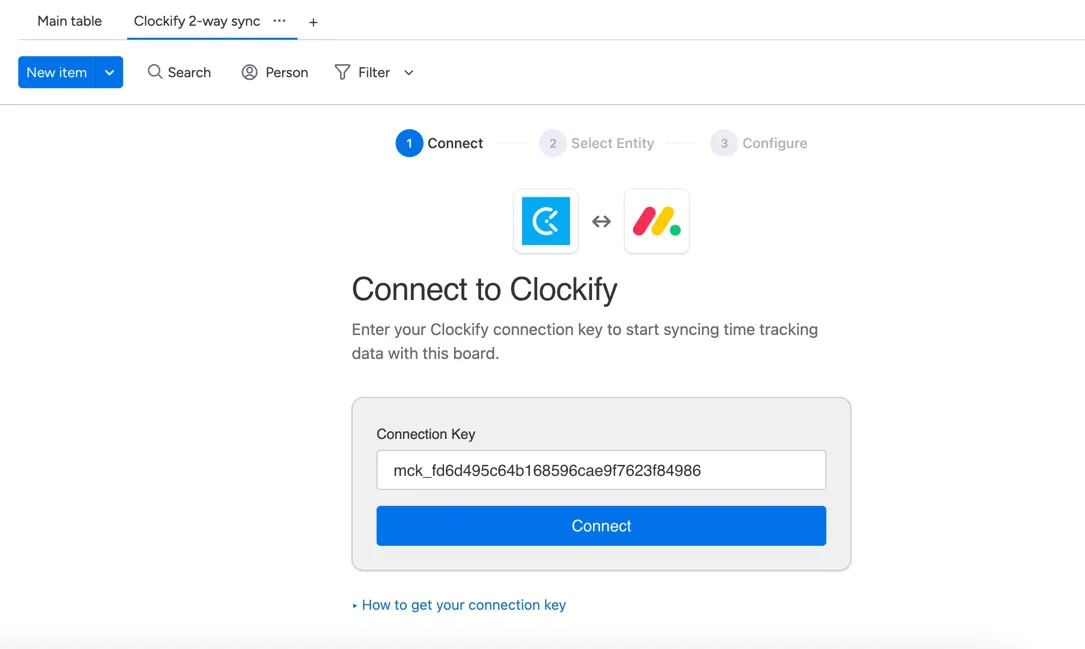
- Paste the connection key into the board view. Select your entity type: time entries, projects, tasks, or clients.
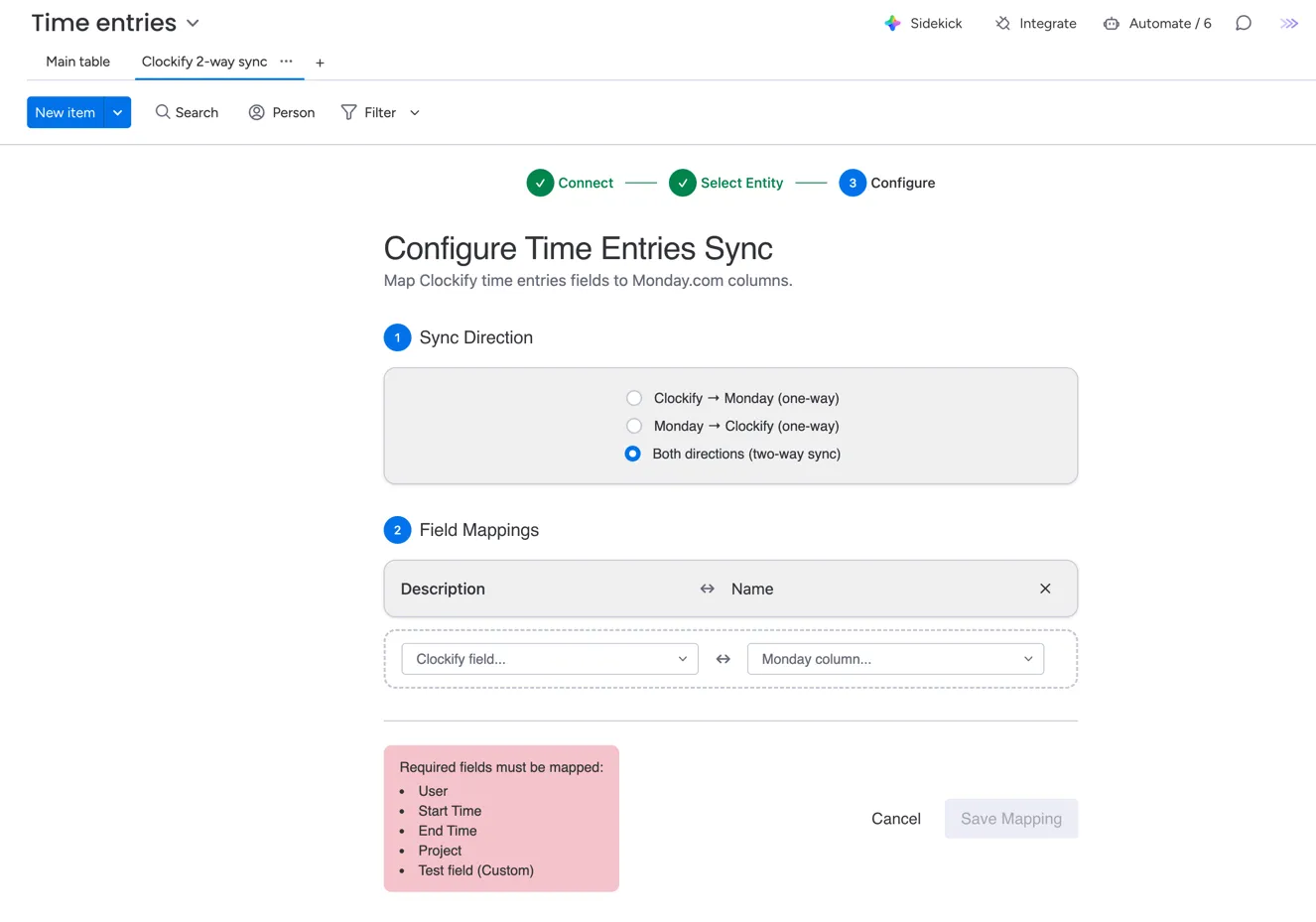
- Map your fields. The item name column is required on the monday.com side. On the Clockify side, map all required fields for your entity type. For time entries, that includes start time, end time, and user at minimum.
- Enable the sync toggle. Data starts flowing within seconds.
The execution log (available in the board view) shows every sync operation from the past seven days, so you can verify data is flowing and troubleshoot any field mapping issues.
One-way vs two-way sync: which should you pick?
One-way works when one platform is the source of truth. Most teams I see use Clockify as the source for time data and monday.com as the project management layer. One-way from Clockify to monday.com means your team tracks time where they always have, and project managers see it in monday without needing a Clockify account.
Two-way makes sense when both platforms need to stay editable. Maybe your project managers adjust time entries in monday.com (flagging incorrect hours, adding notes) and those corrections need to flow back to Clockify for invoicing. Or you create projects in monday.com and need them to appear in Clockify so the team can log time against them.
You can mix directions per board view. Time entries as one-way (Clockify to monday) but projects as two-way. There's no global setting forcing the same direction for everything.
One thing to watch: two-way sync on time entries means locked entries in Clockify can't be modified through monday.com. If someone tries to edit a locked entry from the monday side, the execution log will show an error. Clockify's lock protects approved time from accidental changes, and the connector respects that.
How does the time tracking widget work?
The widget puts a play/stop button directly on your monday.com items. Click play, and a Clockify timer starts for that task. Click stop, and the time entry saves to Clockify. It then syncs back to your monday.com board through the normal sync flow.
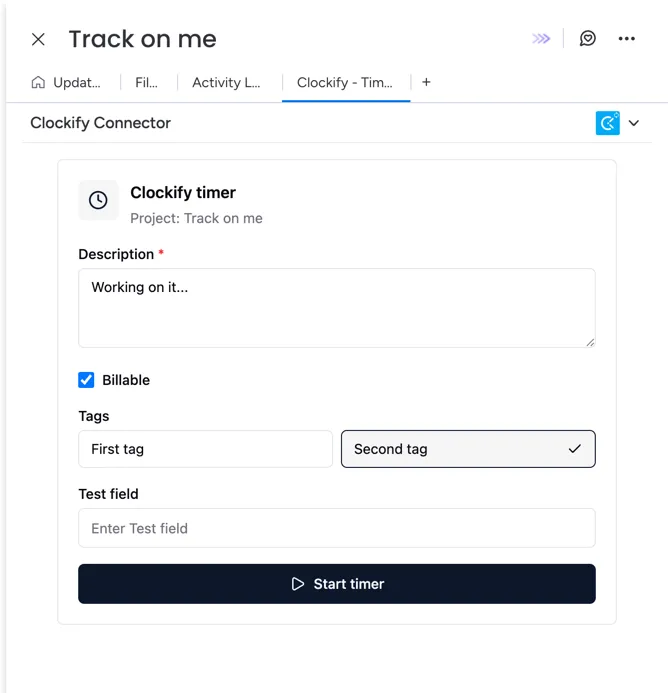
People forget to track time when they have to switch apps. Or they batch-log hours at the end of the day from memory, which is never accurate. The widget keeps them in monday.com where their task list already lives.
The timer runs against the Clockify project and task that are mapped to the monday.com item. So if you've synced your Clockify projects to a board, and an item is connected to one of those projects, the widget knows which project to log time against. You don't have to pick it manually each time.
How are Clockify custom fields handled?
Custom fields from Clockify map to monday.com columns during the field mapping step. You pick which Clockify field maps to which monday.com column, and the types need to be compatible. Text to text, number to number, dropdown to dropdown.
If you add a new custom field in Clockify after initial setup, you'll need to update your field mapping to include it. The app won't auto-create monday.com columns for new fields, so your board structure doesn't change without you deciding it should.
Custom fields sync in both directions if you're running two-way sync. Edit a custom field value in monday.com and it updates in Clockify on the next sync cycle.
Frequently asked questions
Can I sync multiple Clockify workspaces to one monday.com account?
Yes. Each board view has its own connection key, so you can connect different boards to different Clockify workspaces. One board for your engineering workspace, another for your consulting workspace.
Do I need to install anything on both platforms?
Yes. The app requires installation on both the monday.com marketplace and within Clockify. The connection key generated in Clockify is what links the two installations together.
What if the same person has different emails in Clockify and monday.com?
The sync won't match them automatically. Users are matched by email address. If someone uses a personal email in Clockify and a work email in monday.com, their entries won't link to the correct monday.com user. Standardize emails across platforms before setting up the sync.
Can I filter which time entries sync?
The sync pulls all entries for the connected workspace. If you need only specific projects or date ranges in monday.com, you can use monday.com's native filtering on the synced board rather than limiting what syncs.
Does it work with Clockify's free plan?
Yes. The Clockify Connector works with all Clockify plans including free. The features available depend on your Clockify plan (custom fields require Clockify Pro or higher), but the sync itself works regardless.
Getting started
Install Clockify Connector from the monday.com marketplace and follow the setup documentation to connect your workspace. Five minutes, start to finish.
Questions about field mapping or a specific workflow? Email us. We respond within a day.