
How to Trigger monday.com Automations When a QR Code is Scanned
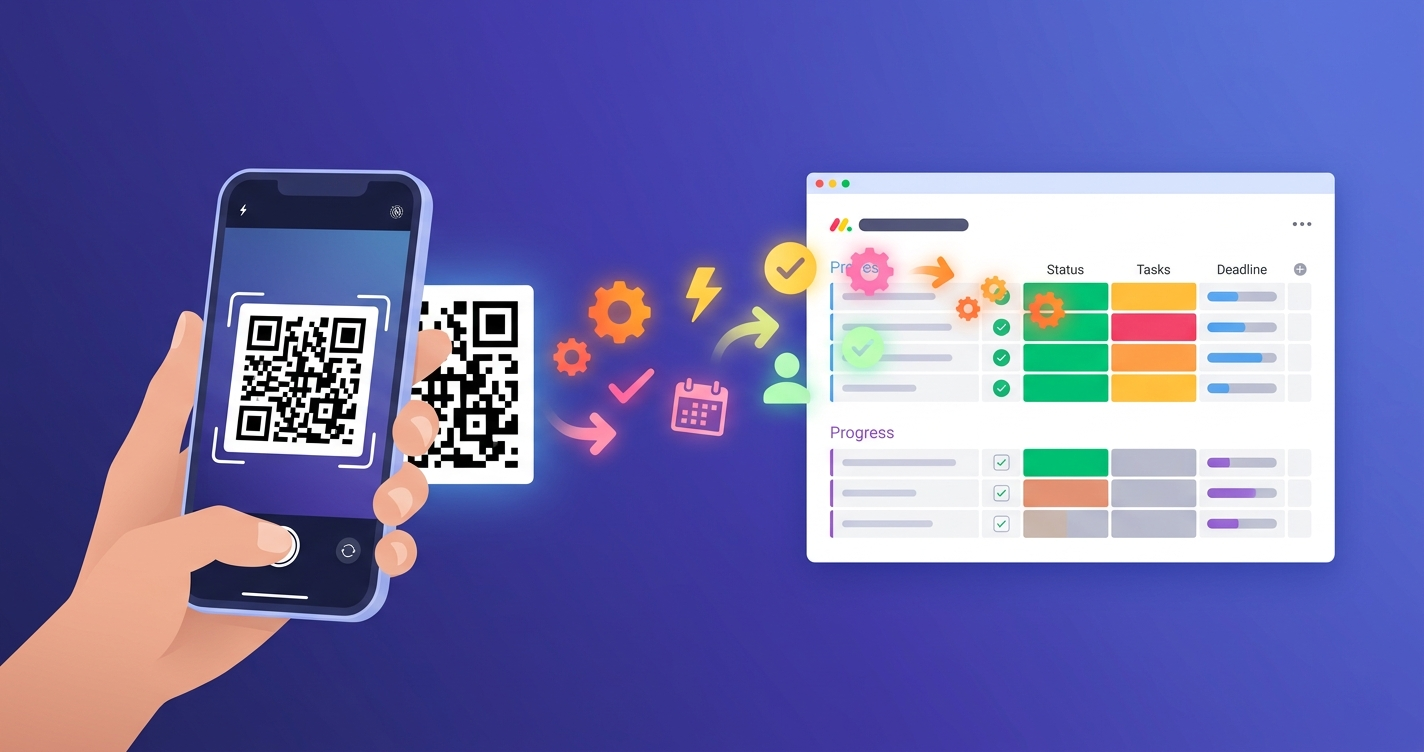
You have physical stuff tracked in monday.com. Equipment in a warehouse. Packages moving through fulfillment. Documents that need signatures. You want to scan a QR code on the thing and have monday.com react. Change a status, send a notification, log when it happened.
monday.com doesn't do this natively. Plenty of apps generate QR codes, but they just open links or show information. Getting a scan to actually fire an automation? Most fall short.
QR Flow makes the connection. Scan a code, trigger an automation. Any automation. Native monday.com recipes, third-party marketplace apps, whatever. The person scanning doesn't need a monday.com account or a special app. Phone camera works.
Can QR codes trigger automations in monday.com?
Yes, with QR Flow. Scan a QR code, the app figures out which item it belongs to, fires the automations you set up.
Everything hinges on the QR code name. You give each code a name when you create it. Your scan automation listens for that same name. That's what connects them.
How does it work?
Two automations. One creates the QR code, one responds when it's scanned.
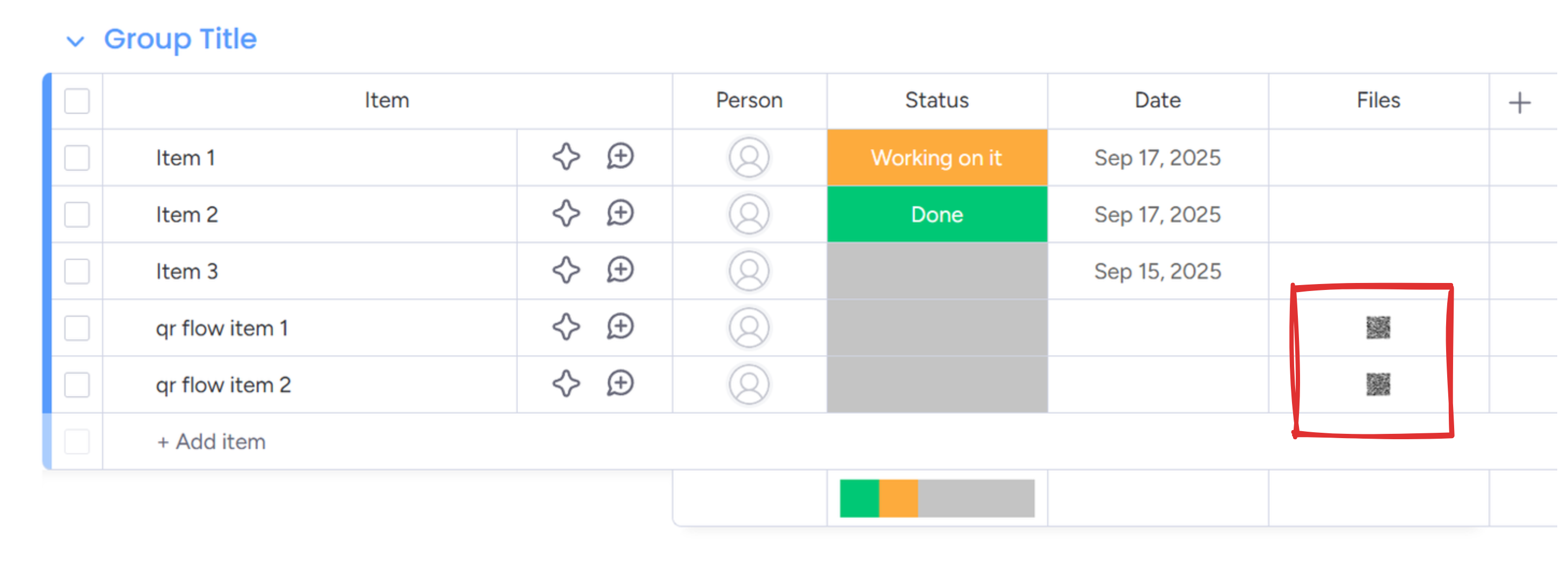
The creation automation generates a QR code for each item and saves it to a file column. You pick the name, whether it's single-use or multi-use, and where the image goes.
The scan automation is what happens after. You enter the QR code name to listen for, then add your actions. Any automation block works here.
Step 1: Install QR Flow
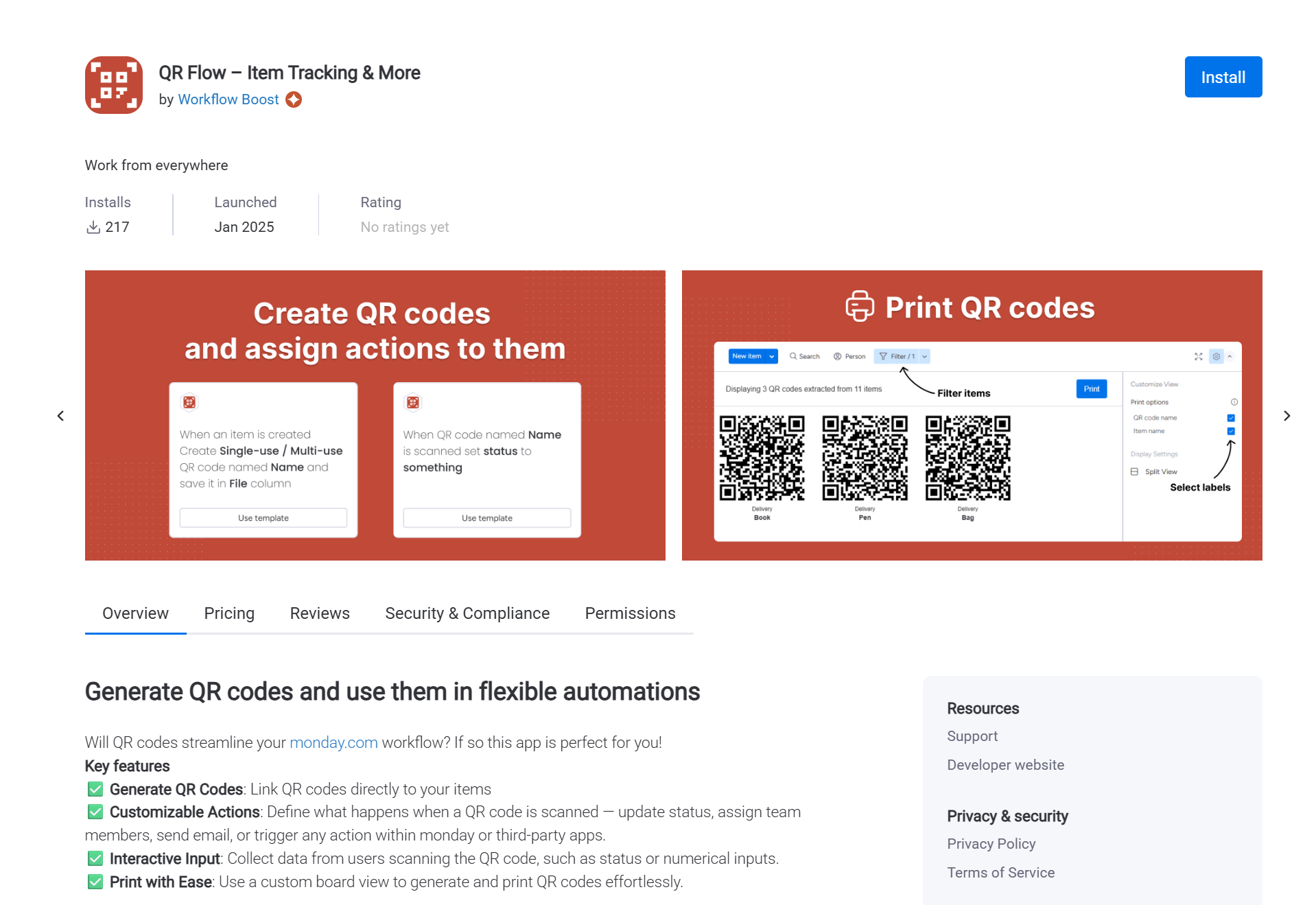
Open the monday.com marketplace and install QR Flow.
Step 2: Create QR codes for your items
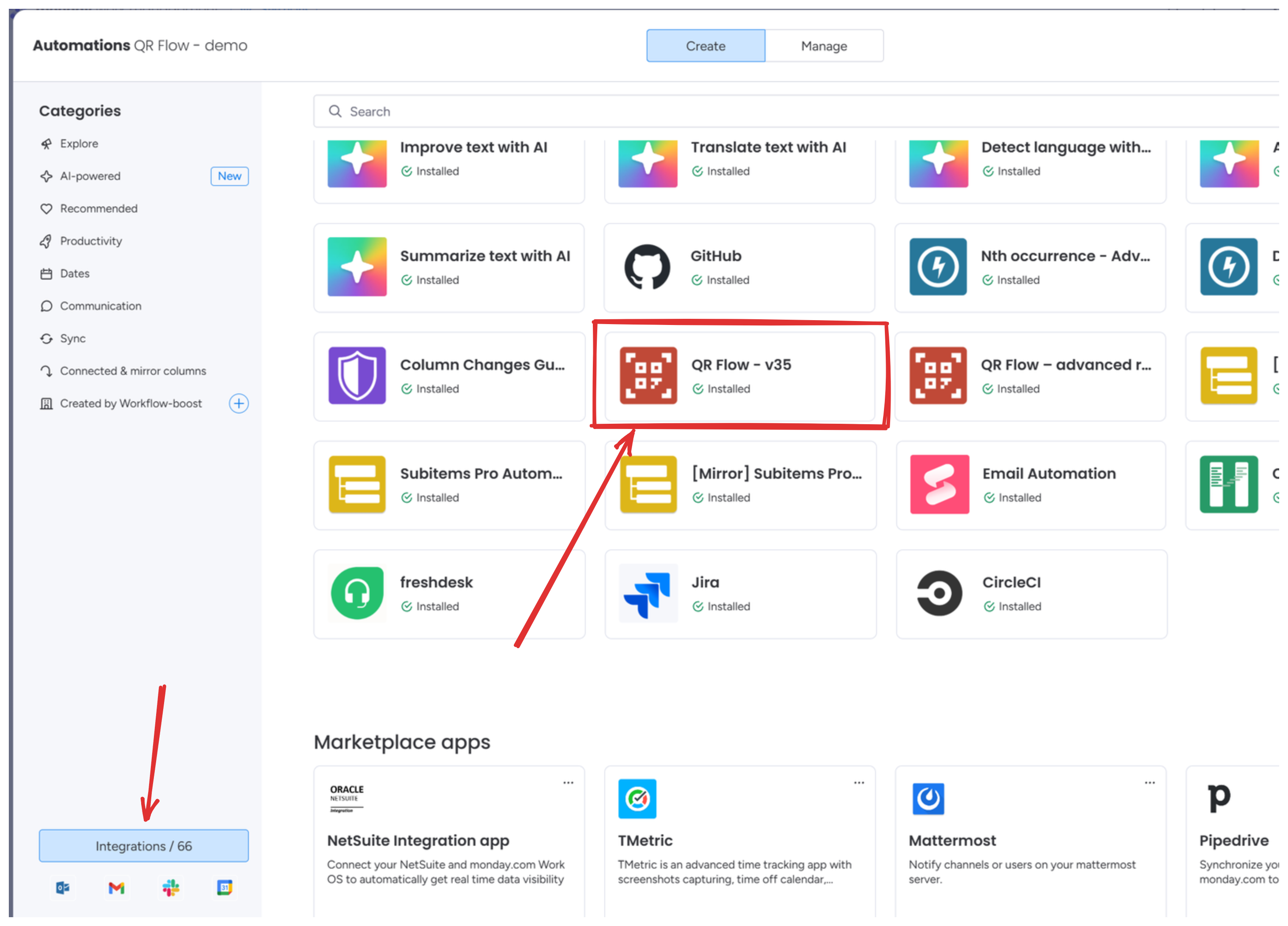
Go to your board, open the automation center. Find QR Flow in the integrations tab. Pick the QR code creation recipe.
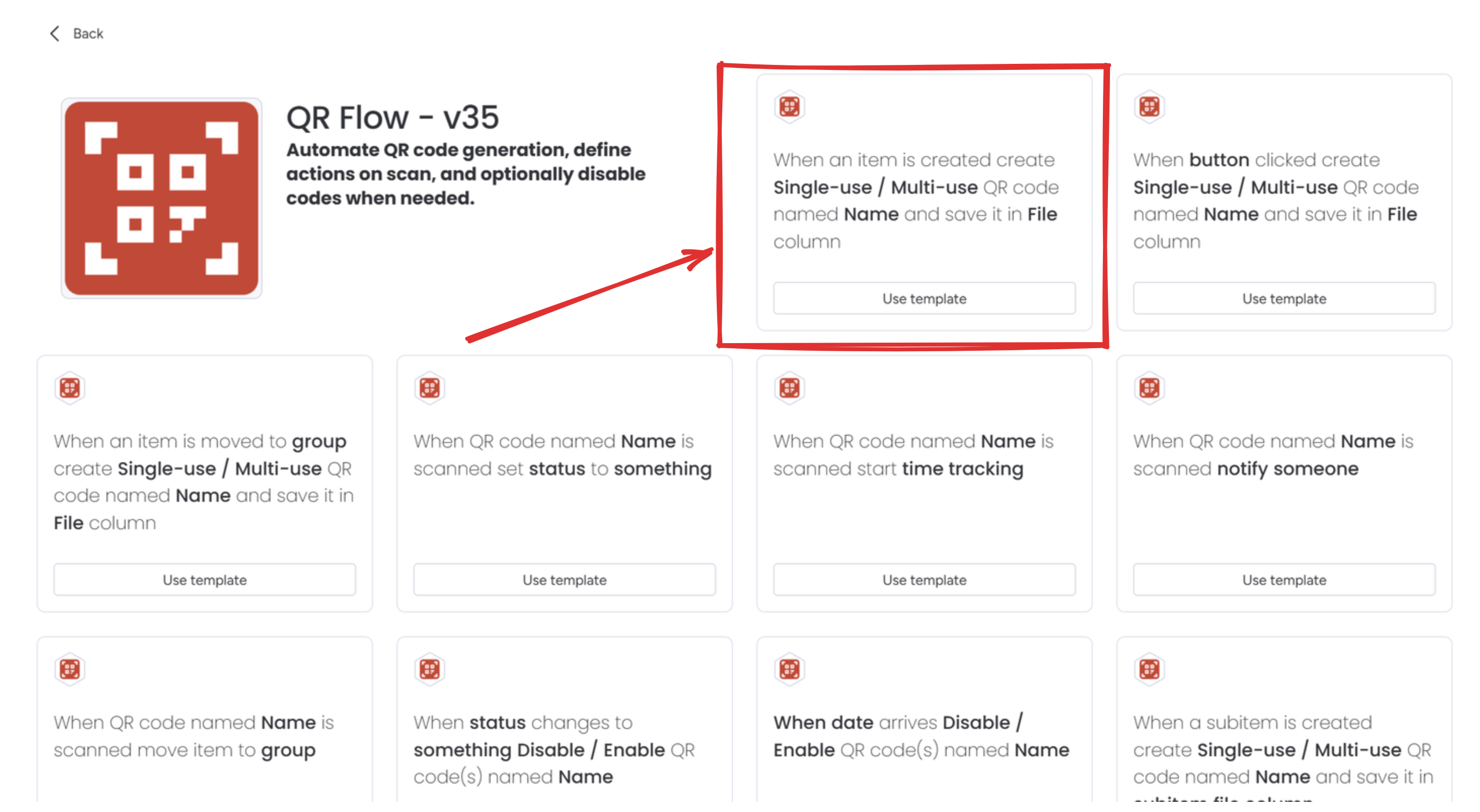
Three things to configure:
Usage type: single-use or multi-use. Single-use codes stop working after one scan. Multi-use codes work forever.
QR code name: something like "inventory-check" or "equipment-scan". You'll use this exact name in your scan automation later. Keep it simple.
File column: where the QR code image gets stored. Create a file column if you don't have one.
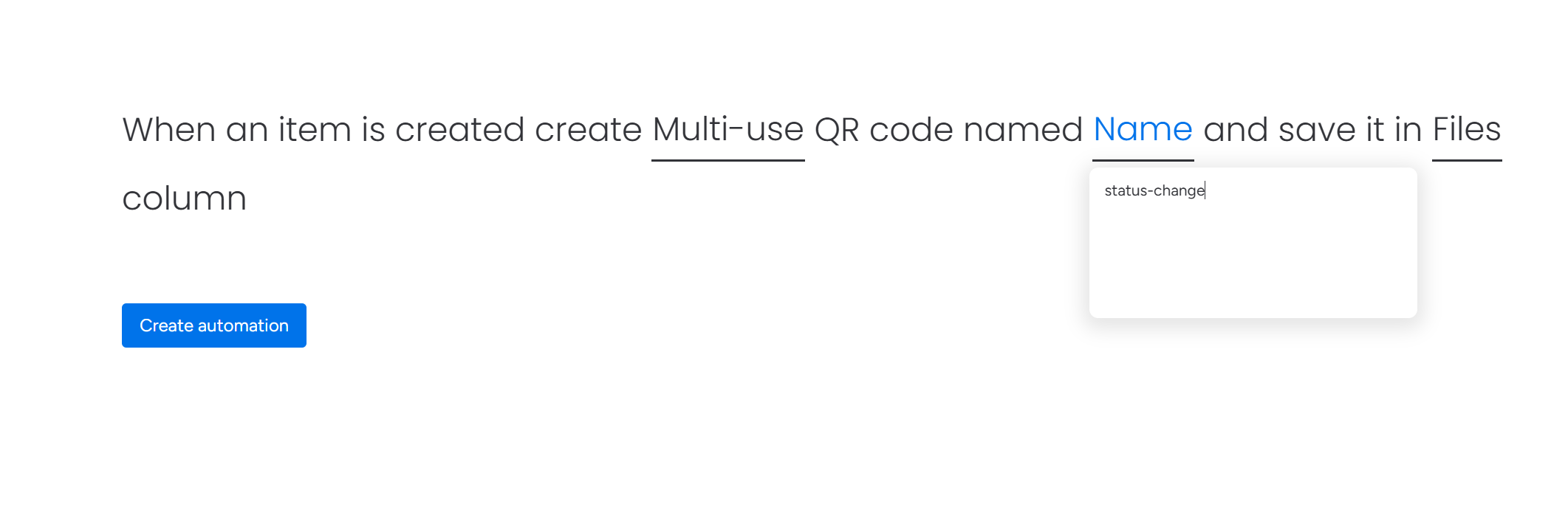
Save. Createa a few items to generate the QR codes.
Step 3: Create the scan trigger automation
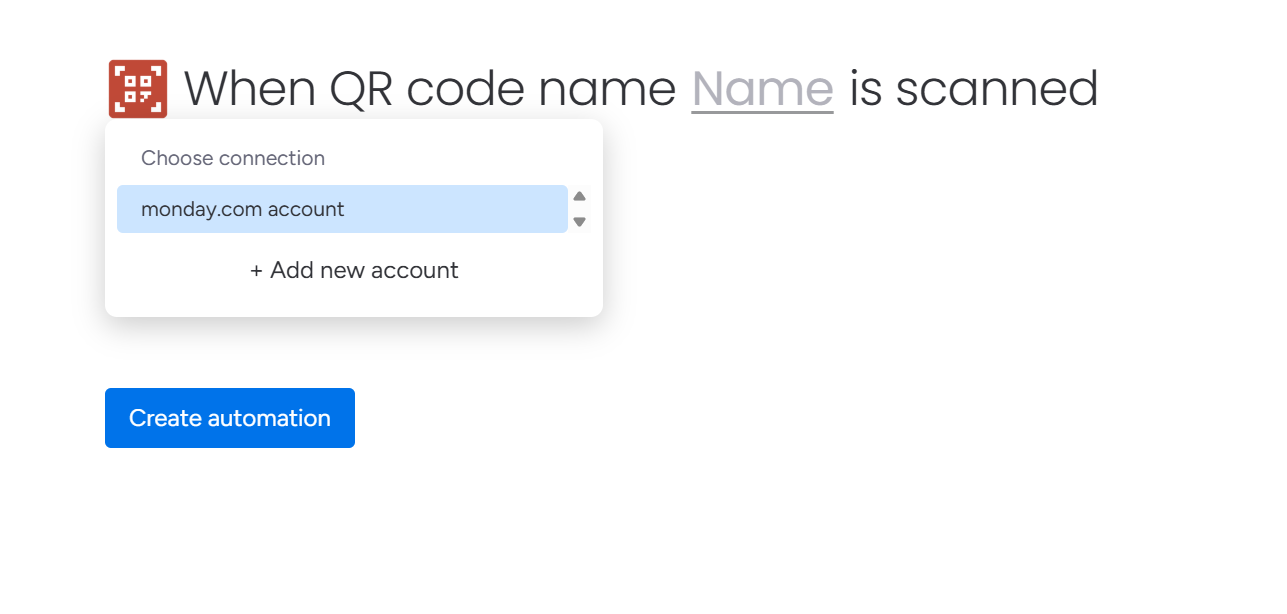
Go to the automation center and create a custom automation. For the trigger, find QR Flow and pick "When QR code named Name is scanned."
You'll see a button with the app icon on the left side of the trigger. Click it to connect your monday account. This authorizes QR Flow to run automations when codes are scanned.
Enter the same QR code name from step 2. Then add your actions:
- Change status to "Scanned"
- Send a notification to someone
- Update a date column to now
- Move the item to a different group
- Create a linked item in another board
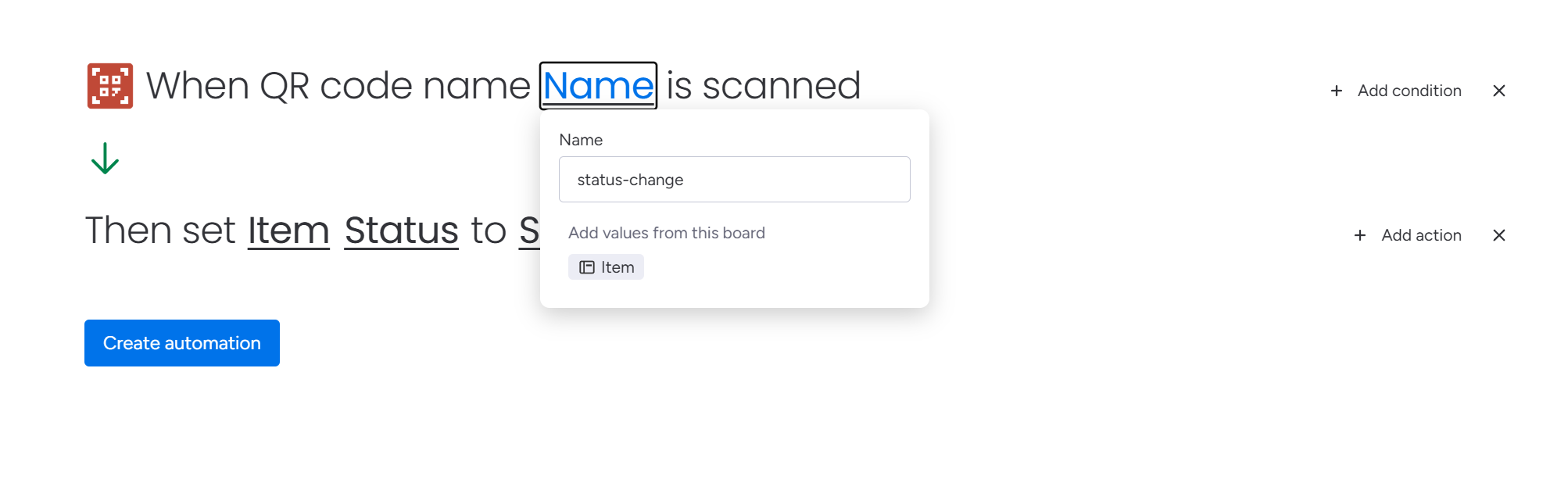
Chain multiple actions if you need to. Or create separate automations with the same QR code name. They all fire on scan.
Step 4: Print or distribute the QR codes
The QR codes are in your file column now. Download them. Print on labels, stick them on things, add to documents.
Each code is tied to its item in monday.com. Scanning triggers automations for that specific item.
For bulk printing, QR Flow has a print view that formats multiple codes for label sheets.
Step 5: Test by scanning
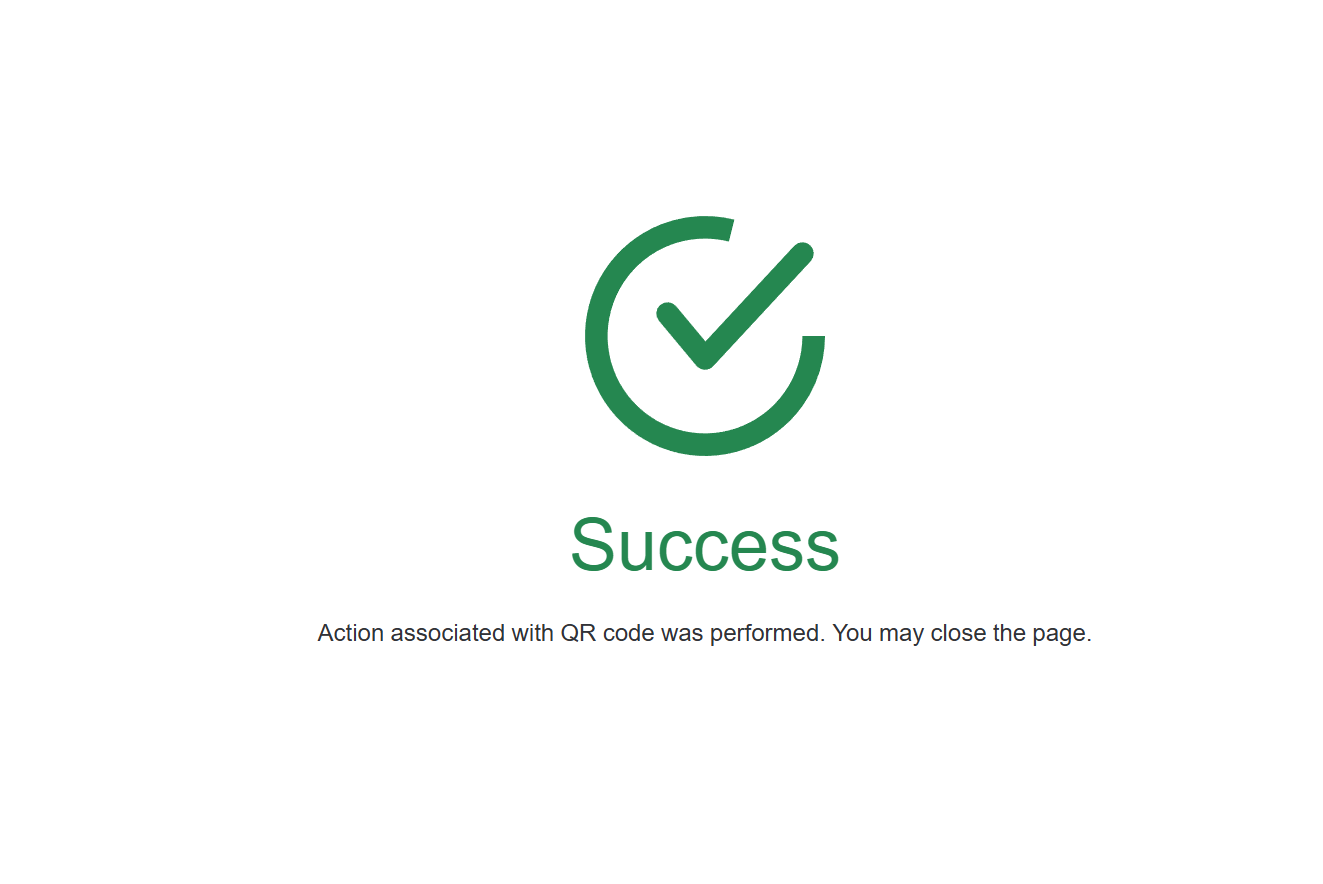
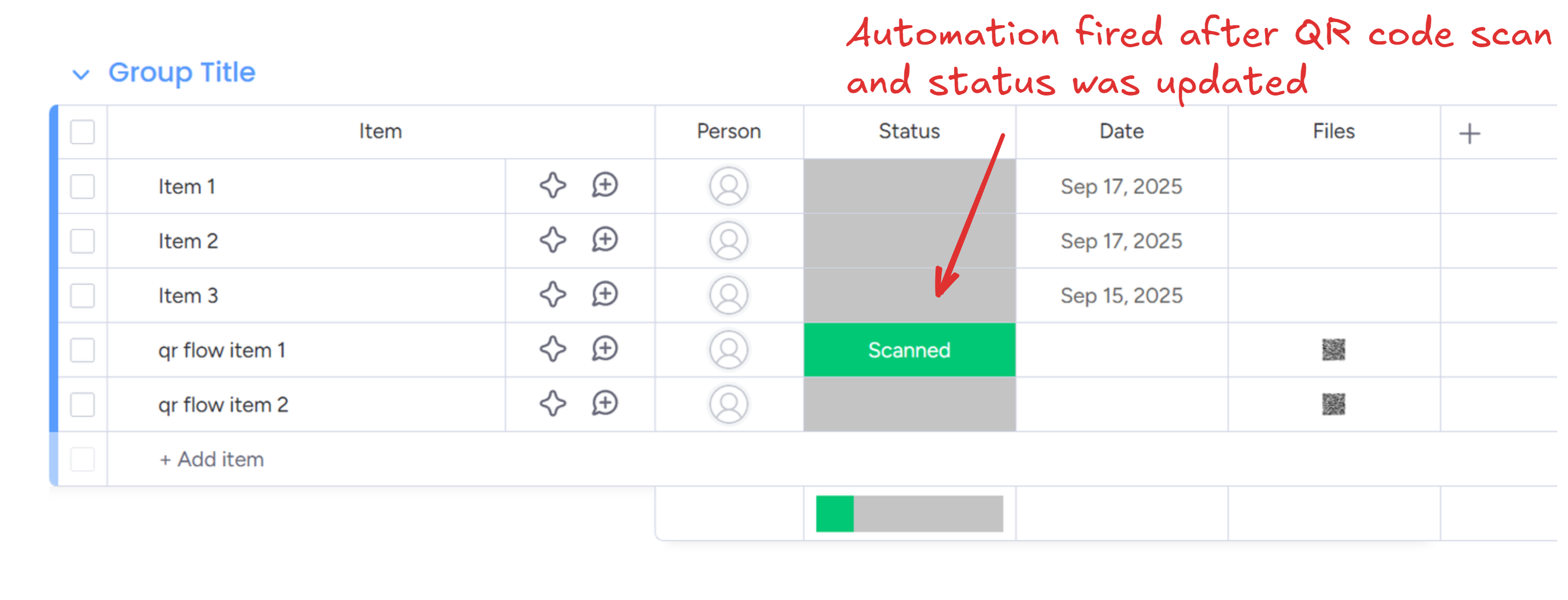
Point your phone camera at a QR code. Tap the link preview. The page loads, automation fires, item updates.
Check your board. If nothing happened, make sure the QR code name matches exactly between creation and scan automations. Capitalization matters.
What can you trigger?
Anything monday.com automations can do. If it works with "When status changes" or "When column changes," it works with "When QR code is scanned."
People use this for inventory. Scan when items arrive, move, ship. Location and timestamps update automatically. Equipment maintenance is another common one. Scan machinery before and after service, the automation logs it and schedules the next check.
Event check-in works well. Badge gets scanned, person marked arrived, notification sent. Same idea for document workflows. Scan the paper, status updates, next person gets notified.
Time tracking is probably the simplest use case. Scan to start a task. Scan to finish. The timestamps log themselves.
Single-use vs. multi-use QR codes
Single-use codes work once. After that, scanning shows an error. Useful for ticket redemption, one-time deliveries, promo codes. Basically anything where you need to prevent duplicate processing.
Multi-use codes work forever. Equipment check-ins, recurring inventory counts, station tracking. Stuff that gets scanned repeatedly.
You pick the type when creating the code. Can't change it later, but you can always disable the code and make a new one.
Disabling QR codes
Items get retired. Workflows change. When a QR code isn't needed anymore, disable it instead of deleting the automation.
QR Flow has a separate automation for this. Enter the QR code name, and it stops triggering. Scanning a disabled code shows an error.
You can re-enable later if needed. The disable documentation covers the details.
Combining with third-party apps
The scan trigger works with any automation block, including blocks from other marketplace apps. If another app adds an action like "Send SMS" or "Create Jira ticket", you can fire that from a QR scan.
Scan a code, create a Zendesk ticket. Scan a code, trigger a Make.com scenario. The scan is just a trigger. Everything else works like any other automation.
Troubleshooting
Automation doesn't fire? Check the QR code name matches exactly. Capitalization matters. "Inventory-Check" and "inventory-check" are different names.
QR code shows an error? Either it's disabled, or it's single-use and already scanned. Check the automation logs.
Can't find the QR code name? Just scan it. The instruction page shows the name.
Setup summary
- Install QR Flow from the marketplace
- Create QR codes using the creation automation (configure name, usage type, file column)
- Create scan trigger automation using the same QR code name
- Add whatever automation actions you need
- Print or share the generated QR codes
- Scan to test
Learn more
- Creating QR codes - detailed creation setup
- Update status by scanning - specialized workflow for status columns
- Disabling QR codes - how to retire codes
Questions? Email [email protected]. We usually reply within a few hours.