
How to Update Item Status in monday.com by Scanning a QR Code
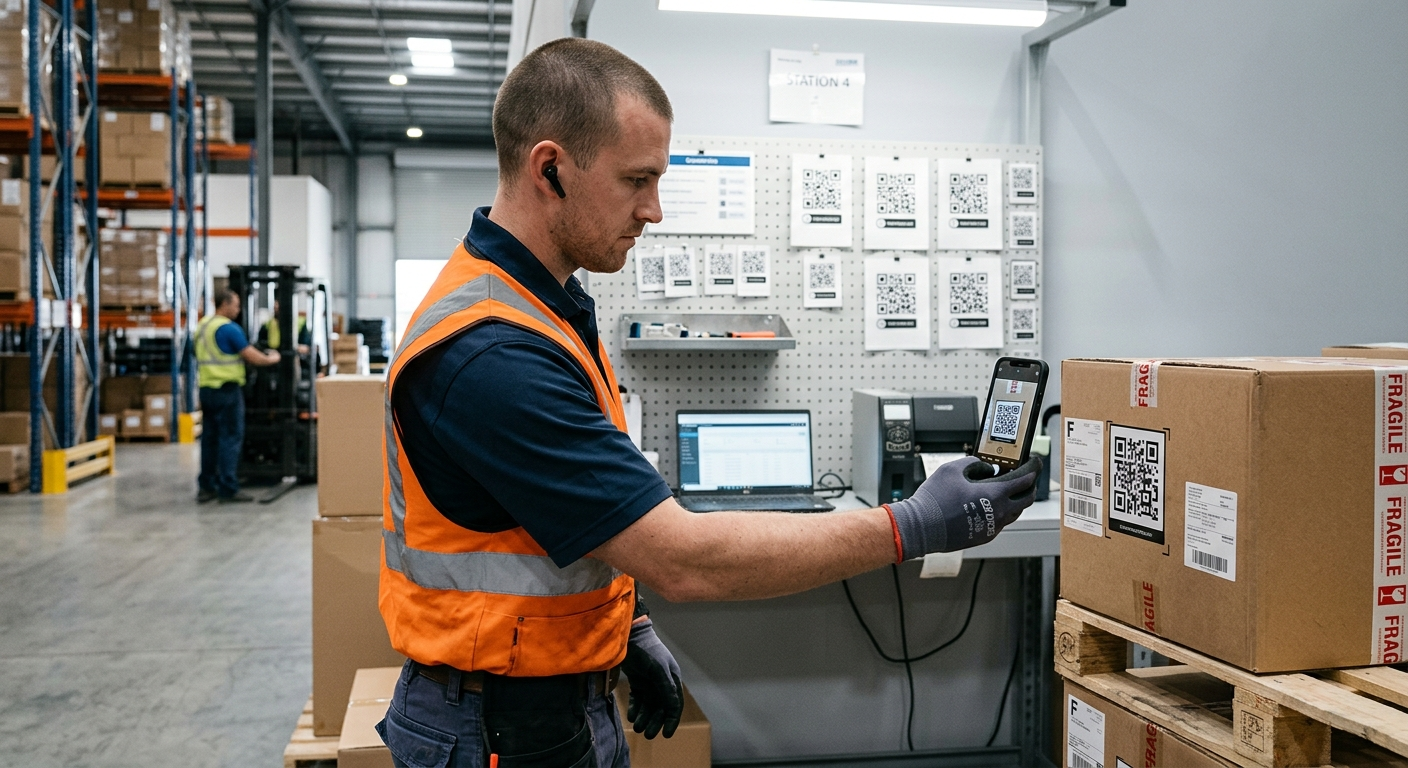
You want workers to update item statuses without opening monday.com. Maybe they're wearing gloves in a warehouse, or they're on a factory floor where touching a screen isn't practical. Scan a QR code, item updates.
monday.com doesn't support this natively. You can generate QR codes with some apps, but getting a scan to update a specific status column based on which QR code was scanned? That requires a different approach.
QR Flow has a feature specifically for this: status label QR codes. You print QR codes for each status in a column ("Received", "In Storage", "Shipped"), place them at different stations, and when someone scans an item followed by a status label, the item's status updates automatically.
Can you update item status by scanning a QR code in monday.com?
Yes, with QR Flow. The workflow is two scans: first the item's QR code, then the status label QR code. The item's status column updates immediately.
This is different from most QR code apps that just open a link or display information. Here, the scan itself triggers the column update. No typing, no finding the item in a board, no dropdown menus.
How does status label scanning work?
The process has two parts: generating the status label QR codes, and setting up the automation that responds when they're scanned.
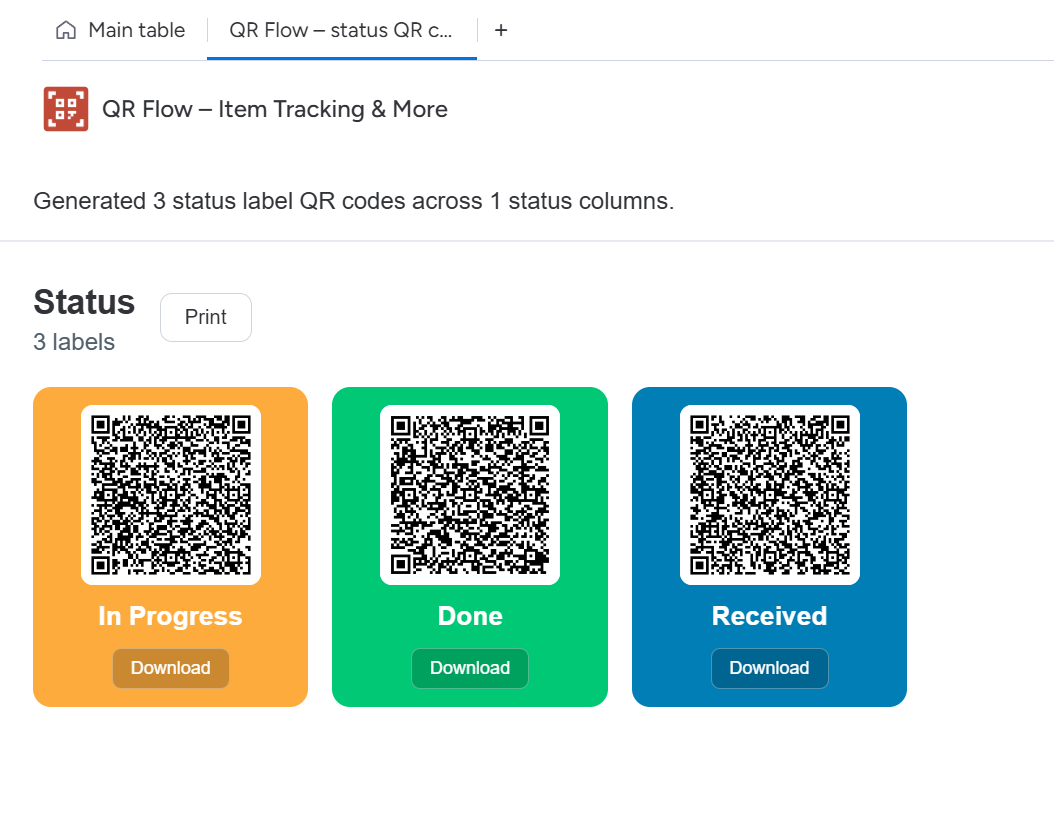
For the status labels, QR Flow includes a dedicated board view. Open your board, add the "QR Flow – status QR codes" view, and you'll see every status column with all its labels. Each label has its own QR code. Print them, download as PNG files, whatever you need.
For the automation, you create one recipe: "When QR code named Name is scanned ask to scan QR code for Status column labels and save it when submitted." Configure it with your QR code name and the status column you want to update.
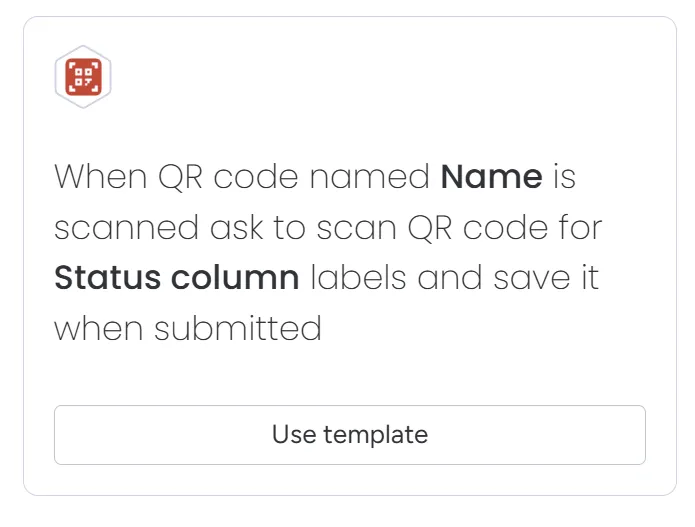
When someone scans an item's QR code, the app opens the camera again and prompts them to scan a status label. They scan whichever label applies, and the column updates.
What's a real workflow look like?
Picture a warehouse with items tracked in monday.com. Each physical item has a QR code sticker linking it to its row in the board.
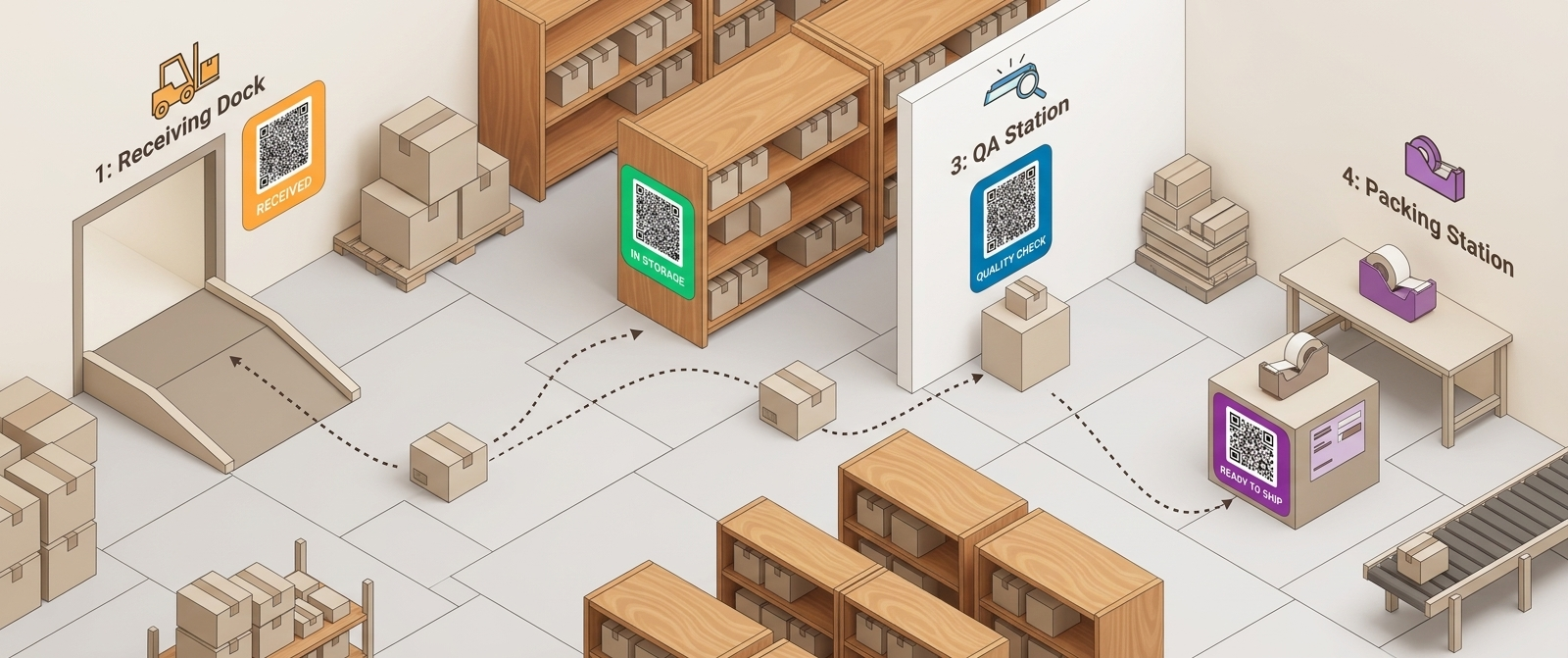
At different stations around the warehouse, you tape status label QR codes to the wall or workstation. "Received" at the receiving dock. "In Storage" at the shelving area. "Quality Check" at the QA station. "Ready to Ship" at the packing station.
An item arrives. Worker scans the item QR code, then scans "Received" on the wall. Item moves to storage. Worker scans item, scans "In Storage." Later, item goes to QA. Scan item, scan "Quality Check."
Nobody opens a laptop. Nobody searches for the item in monday.com. The person handling the physical item updates its status in two seconds with two scans.
What do I need to set this up?
You need a QR code on each item. Use QR Flow's creation automation to generate these. The QR code creation guide covers this.
You need status label QR codes for your workflow. Generate these from the "QR Flow – status QR codes" board view. Print them and place them at your stations.
And you need the scanning automation. Create it using the "When QR code named _Name_ is scanned ask to scan QR code for _Status column_ labels" template. Make sure the QR code name matches what you used when creating the item QR codes.
Are status label QR codes board-specific?
Yes. Each status label QR code encodes which board and column it belongs to. Scanning a "Done" label from Board A won't work if you just scanned an item from Board B.
This is intentional. It prevents accidental updates when you have multiple boards with similar status names. The tradeoff is you need separate printed status labels for each board you're tracking.
Can I have multiple automations for the same QR code?
Not for advanced automations like status label scanning. Only one "advanced automation" can be configured per QR code name. If you need different behaviors for different item types, use different QR code names for each category.
The FAQ explains why this limitation exists and how to work around it.
Setup steps
- Install QR Flow from the monday.com marketplace
- Create QR codes for your items using a creation automation
- Add the "QR Flow – status QR codes" view to your board
- Print or download the status label QR codes you need
- Create the scanning automation: "When QR code named _Name_ is scanned ask to scan QR code for _Status column_ labels"
- Place status labels at your stations
- Scan an item, then scan a status label to test
Frequently asked questions
What happens if I scan the wrong status label?
The status updates to whatever label you scanned. There's no confirmation step between scanning and updating. If you need to change it, scan the item again and scan the correct status label. The automation logs in monday.com show the full scan history if you need to track what happened.
Can I use this with other QR Flow features at the same time?
You can combine this with display features on the same QR code. For example, show item details after the status updates, so the worker sees confirmation of what they just did. However, only one advanced automation (like status label scanning) can be active per QR code name.
Do I need a special app to scan the QR codes?
No. Any phone camera works. When someone scans an item QR code, it opens a web page in QR Flow that handles the status label scanning through the browser. No app installation required for the people doing the scanning.
Can I update multiple columns with one scan?
Not with a single status label scan. Each automation targets one status column. If you need to update multiple columns when an item moves to a new station, you'd set up separate automations for each, though this would require scanning multiple status labels. For multi-column updates from a single scan, consider using a custom display feature.
Getting started
Install QR Flow from the monday.com marketplace. The status label documentation has detailed setup instructions with screenshots. If you have questions about whether this fits your workflow, email us.