
How to Trigger Automations Based on Dynamic Time in monday.com
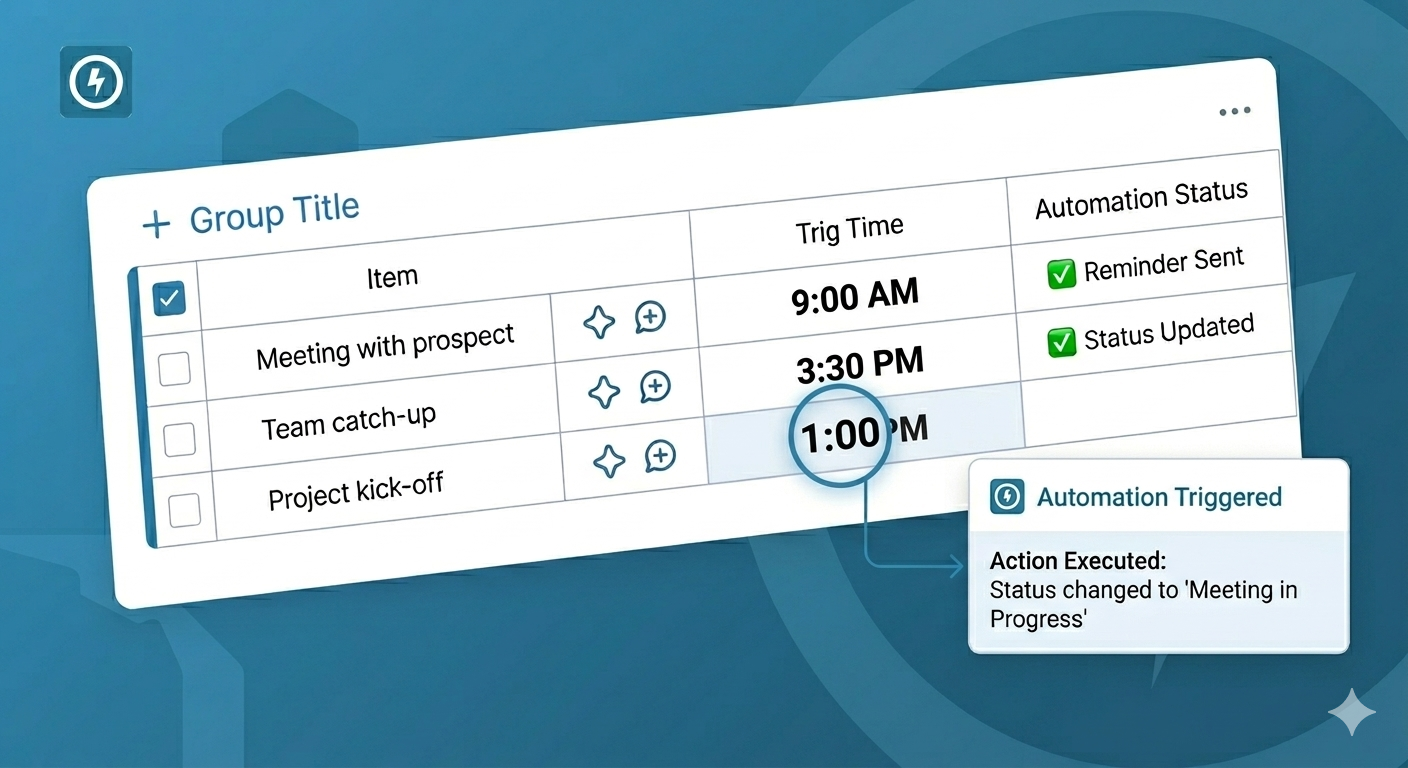
You have a meetings board in monday.com. Each meeting has a different time - one at 9:00 AM, another at 2:30 PM, another at 4:00 PM. You want to notify attendees 30 minutes before each meeting.
monday.com can't do this. Native date automations let you set a fixed time (like "trigger at 9:00 AM"), but they ignore the time stored in your date column. Every item triggers at the same time, regardless of what's in the column.
Advanced Time Triggers is a monday.com app that reads the actual time from your date column. If one meeting is at 9:00 AM and another is at 2:30 PM, each triggers at the right time.
Can monday.com automations use the time from a date column?
No. Native automations ignore the time component in date columns. You can configure a fixed time in the automation itself (like "at 9:00 AM every day"), but that time applies to all items equally.
If your date column says "March 15, 3:00 PM", native automations won't fire at 3:00 PM. They'll fire at whatever fixed time you set in the automation, or at midnight if you don't set one.
Advanced Time Triggers reads the time from your date column. Each item triggers based on its own date and time value.
Can you send reminders before meetings based on meeting time in monday.com?
Not natively. Since native automations can't read the time from your column, you can't say "notify me 30 minutes before the time in Meeting Date column."
With Advanced Time Triggers you create an automation: "30 minutes before Meeting Date, notify person assigned." If one meeting is at 10:00 AM and another is at 3:00 PM, the first notification goes out at 9:30 AM and the second at 2:30 PM.
This is what most people use the app for. Meeting reminders based on actual meeting time. Deadline alerts based on actual deadline time. Follow-up prompts timed to specific hours.
How is this different from native date automations?
Native monday.com automations work like this:
- "When date arrives" - fires at a fixed time you set (or midnight if not set), same for all items
- "X days before date" - fires X days before, at a fixed time, same for all items
Advanced Time Triggers works like this:
- "When date and time arrives" - fires at the time stored in each item's date column
- "X minutes/hours before date and time" - fires relative to each item's actual time
The difference is static vs. dynamic. Native uses one fixed time for everything. Advanced Time Triggers uses the time from each item.
How to change status when a deadline time passes
Create an automation: "When Due Date arrives, change Status to Overdue."
If one item's deadline is 5:00 PM and another's is 9:00 AM, each status changes at its respective time. You don't have to pick one fixed time that applies to everything.
You can also add time-based offsets. "1 hour after Due Date, notify manager" escalates one hour after each item's specific deadline.
How to set up recurring automations at specific times
monday.com's native recurring triggers fire on a schedule you define. Advanced Time Triggers adds an Nth occurrence feature for more patterns: every Monday at 9:00 AM, first Tuesday of each month, last Friday of each quarter.
The automation fires on schedule and can trigger any monday.com action.
Setting up your first time-based automation
To send a reminder before a meeting based on the meeting time:
- Install Advanced Time Triggers from the monday.com marketplace
- Open your board's automations and find Advanced Time Triggers recipes
- Choose "Before date and time arrives" as your trigger
- Select your date column (Meeting Date, Due Date, whatever you're using)
- Set the offset: 30 minutes, 2 hours, 1 day
- Pick your action: notify someone, change status, send email
- Save and activate
Each item now triggers based on its own date and time, not a fixed time.
How the timing works
The app checks every 15 minutes: at :00, :15, :30, and :45 past the hour. If your date column says 3:07 PM, the automation fires at 3:15 PM.
For meetings and business deadlines, this precision works. If you need triggers down to the second, please contact us.
Times are processed in UTC. If your date column doesn't include a time, it defaults to 00:00 UTC. Make sure your team knows how that maps to their timezone.
Common workflows
Meeting reminders are the big one. "15 minutes before Meeting Date, notify attendees" sends each reminder at the right time based on when each meeting actually starts.
Deadline escalation works the same way. "When Due Date arrives, change Status to Overdue" marks each item overdue at its actual deadline time, not at some arbitrary fixed hour.
Teams with SLAs use hour-based offsets. "2 hours before SLA Deadline, change Priority to Urgent" gives a heads-up before each ticket's specific deadline.
Frequently asked questions
Why can't I use the time from my date column in native automations?
monday.com's native date triggers don't read the time component from date columns. They use a fixed time you configure in the automation itself. This is a platform limitation.
What's the difference between fixed time and dynamic time triggers?
Fixed time: the automation fires at the same time for all items (e.g., every day at 9:00 AM). Dynamic time: the automation fires based on what's in each item's date column (e.g., 30 minutes before each meeting's specific time).
Can I trigger automations for past dates?
No. Time triggers only fire for future dates. If a date already passed when you set up the automation, nothing happens.
Do disabled automations count against my plan?
Yes. Configured automations count toward plan limits whether they're active or not.
What if my date column is empty?
The automation skips items with no date value.
What if my date column has a date but no time?
It defaults to 00:00 UTC. If you need time-based triggers, make sure your team is entering times in the date column.
Can I use this with mirror columns?
The trigger needs a date column on the current board. If you're mirroring dates from another board, copy them to a local column first.
Getting started
Install Advanced Time Triggers from the monday.com marketplace. The documentation covers setup, and you can email us if you have questions about a specific workflow.